A marketing manager sends you a photo of a bottle on a grey studio table and asks for a web banner on a red background. You pick up the Eraser, spend twenty minutes rubbing out the table, drop the bottle onto red and send it off. The next morning the reply arrives: “Love it. Can we have one with the original table for the catalogue?” The table has gone. The Eraser deleted those pixels, the file was saved, and the only way back is the original photo and another twenty minutes.
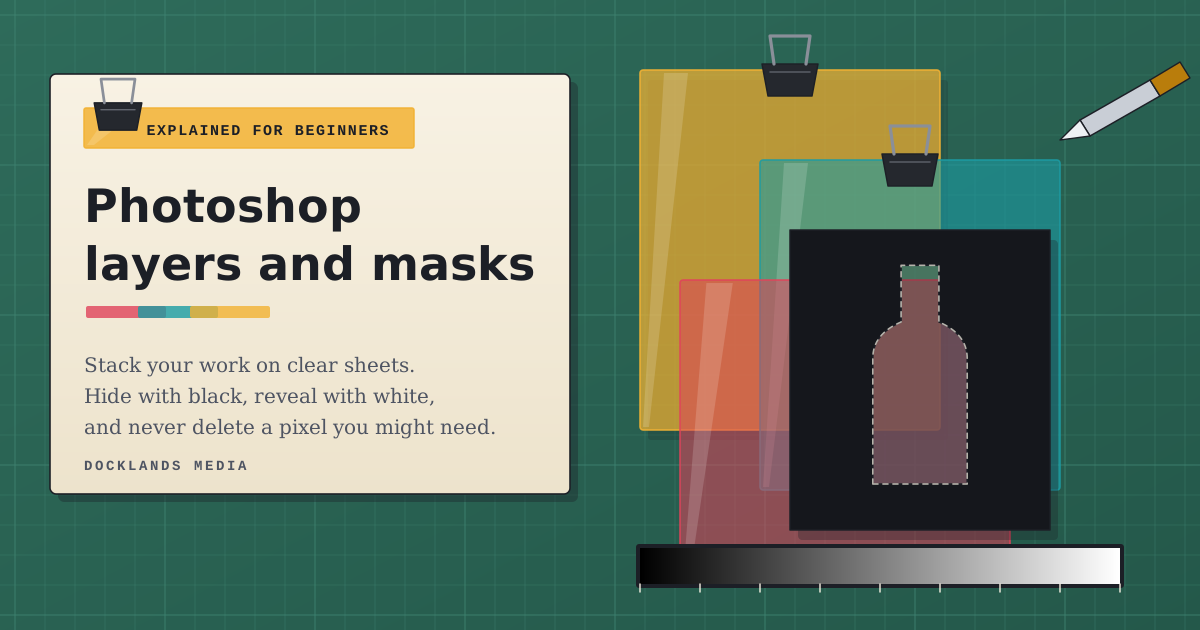
Layers and masks exist so that never happens. A layer is a separate sheet in a stack, like clear acetate, so the bottle, the background colour and the headline each live on their own sheet and can change without touching the others. A layer mask is a black and white stencil attached to one layer: black hides, white reveals and grey partly hides. Nothing is deleted, so when the client wants the table back, you paint white and it’s there.
Below: a rule for choosing between a mask, the Eraser, a clipping mask and an adjustment layer, that banner built layer by layer, and the usual reasons a mask “isn’t working”. Our Photoshop Beginner course covers all of it in two days.
What are layers in Photoshop?
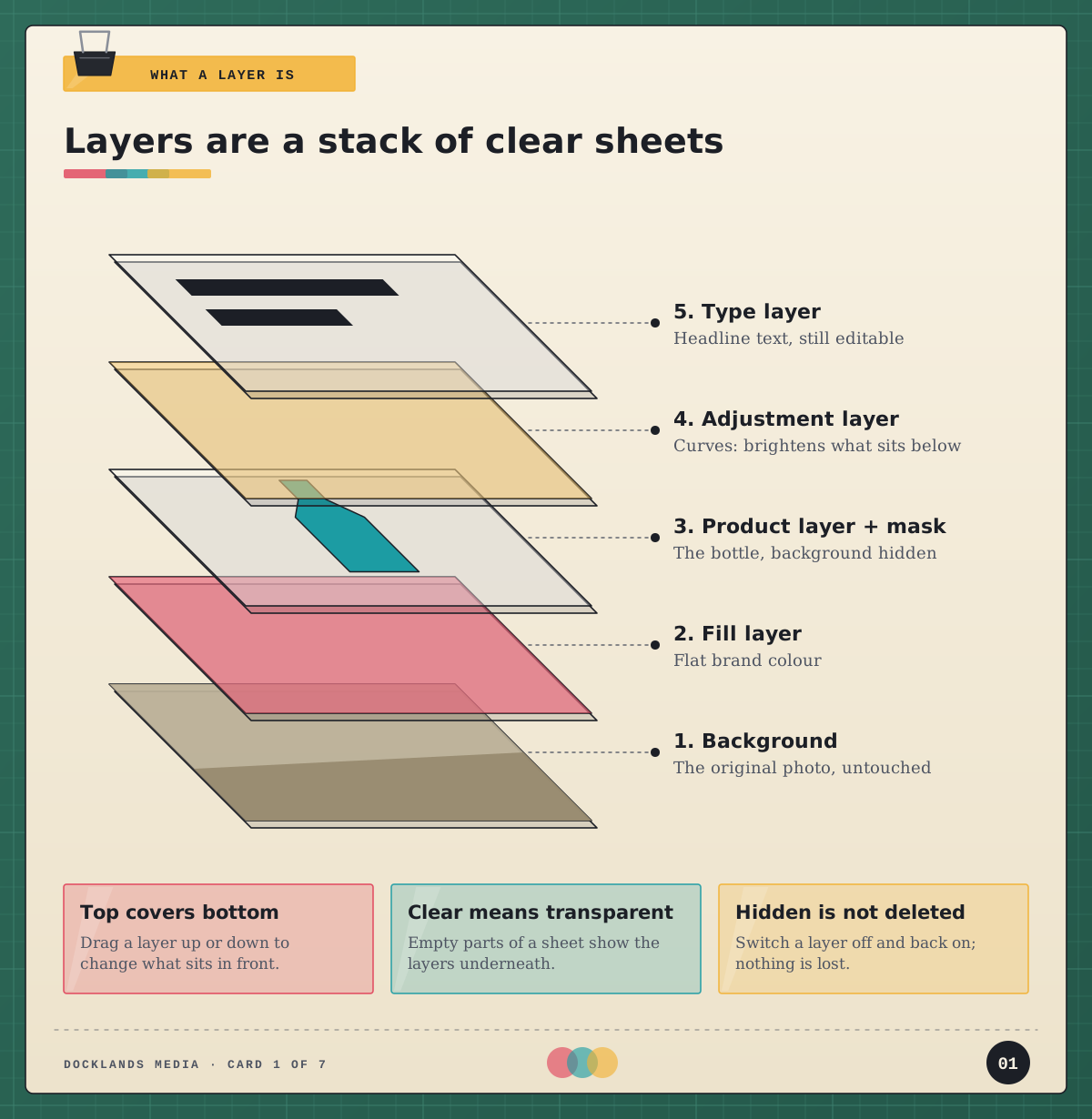
Picture a pile of clear acetate sheets on a desk. Each sheet holds one part of the picture, and wherever a sheet is empty you see through to the ones below. The Layers panel is that pile listed from top to bottom: the layer at the top sits in front of everything, and dragging a layer up or down changes what covers what. The grey and white checkerboard you see when nothing is underneath is how Photoshop shows transparency.
Not every sheet holds pixels. Type layers keep text editable, shape layers hold crisp vector shapes, fill layers hold a flat colour, gradient or pattern, and adjustment layers hold an instruction, such as “brighten” or “warm it up”, that changes how the layers below look without altering them. When you open a photo, it arrives as a single locked layer called Background, which is why you can’t drag it up the stack until you unlock it.
One habit makes all of this pay off: save your working file as a PSD. JPEG and PNG flatten everything into a single image, so use them for the exported version and keep the layered file as your master.
How does a layer mask work?
Click the Add layer mask button at the bottom of the Layers panel and a white thumbnail appears beside the layer. White means “show everything”, so nothing changes yet. Paint on that thumbnail with a black brush and the layer disappears wherever you paint, letting the layers below show through. Paint with white and it comes back. Shades of grey give partial transparency, which is how you get a soft edge, and a black to white gradient across a mask fades one picture gently into another.
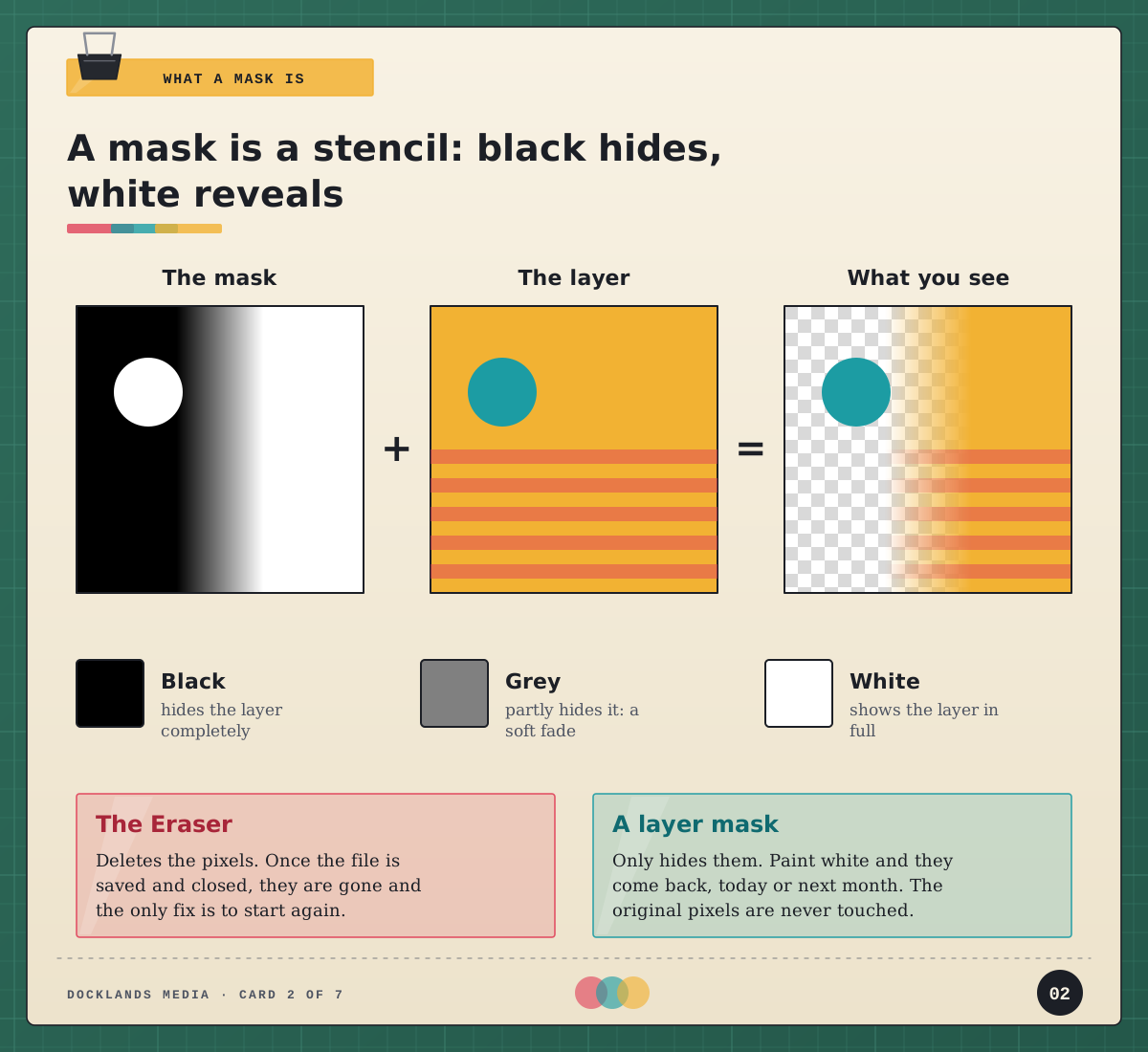
A few shortcuts speed things up. Make a selection first and the new mask is built from it, so only the selected area shows. Hold Alt (Option on a Mac) as you click the button to start with a black mask that hides everything. Ctrl+I (Cmd+I) inverts a mask, Alt-clicking the mask thumbnail shows the mask on its own so you can check for gaps, and Shift-clicking it switches the mask off for a quick before and after.
That’s the real difference from the Eraser: it deletes pixels, while a mask only hides them, so every decision stays reversible.
Mask, Eraser, clipping mask or adjustment layer?
Beginners meet these four tools in the same week and mix them up. Rather than learning them as features, ask what you’re trying to do:
Hide part of one layer, and maybe want it back: a layer mask.
Remove pixels for good from a throwaway layer: the Eraser is fine.
Show a layer only inside the shape of the layer below: a clipping mask. Put a photo above some bold type, Alt-click (Option-click) the line between the two layers, and the photo appears only inside the letters.
Change colour or light in one area: an adjustment layer, using the mask that comes with it to choose where. Paint black over the house and a Curves layer brightens only the sky.
Change one layer, not everything below it: clip the adjustment layer. By default an adjustment layer affects every layer beneath it, so clipping is how you brighten the product without brightening the background.
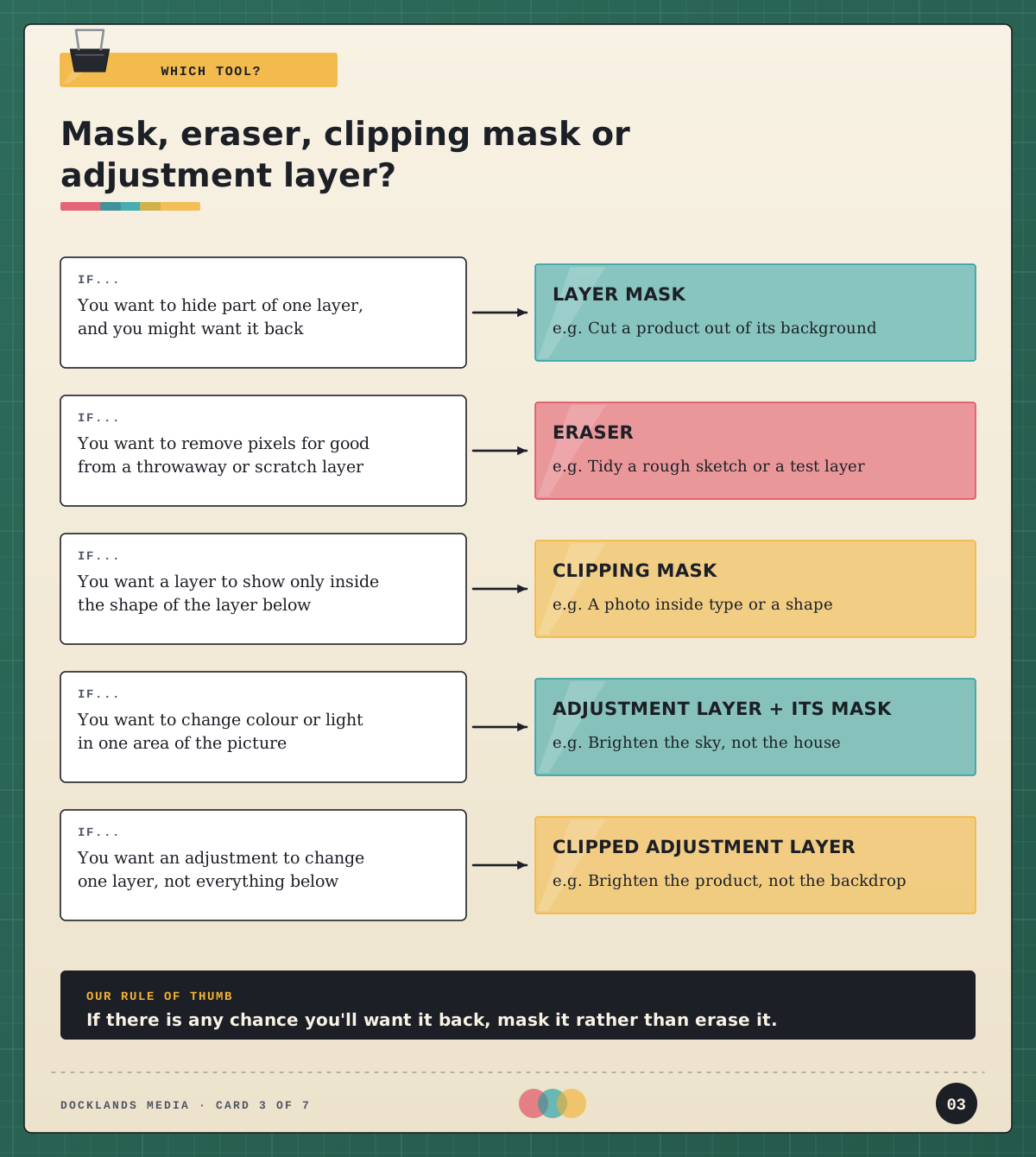
Our view: if there’s any chance you’ll want something back, mask it rather than erase it. It’s the habit that turns a quick fix into a file you could hand to a colleague.
A worked example: the product banner, layer by layer
Here’s the bottle banner built the way we’d teach it, from the bottom of the stack up:
Background. The original photo, untouched. Duplicate it with Ctrl+J (Cmd+J), then hide the original with its eye icon so it’s always there if you need it.
Fill layer. A solid colour fill layer in the brand red.
Soft shadow. A new empty layer, painted with a large soft black brush under the bottle and turned down to around 40% opacity.
Product with a layer mask. The duplicate photo, moved to the top of these, with Select Subject picking out the bottle and a mask added from that selection. Select and Mask cleans up the edge, and stray bits are painted out in black on the mask.
Curves, clipped to the product. A Curves adjustment layer lifts the bottle, clipped so the red stays exactly the brand colour.
Type. The headline as a live type layer, so the wording can change.
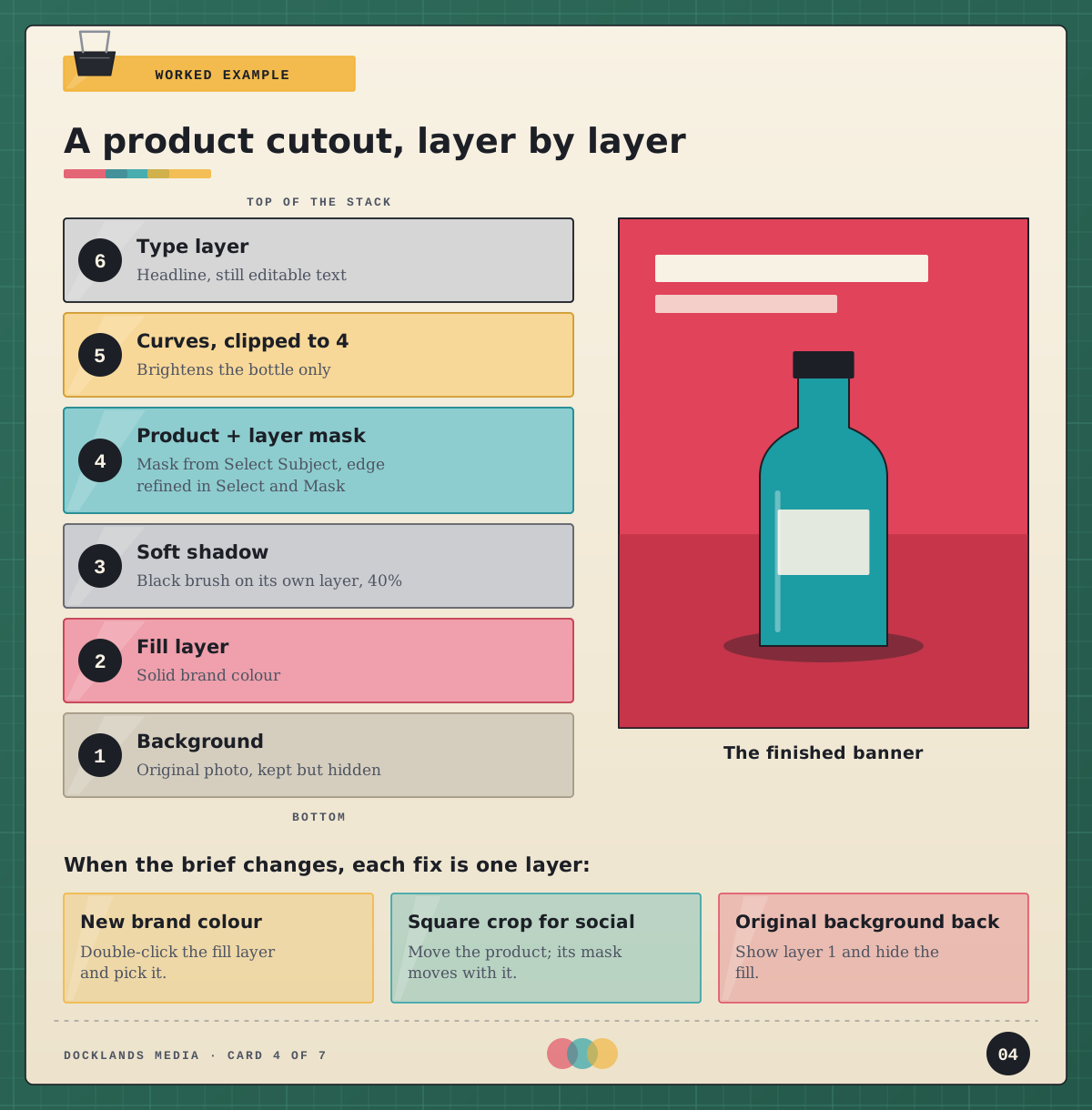
Now the follow-up email is easy. A catalogue version with the original table? Show the Background layer and hide the fill and the painted shadow. A different red? Double-click the fill layer’s thumbnail. A square version for social? Change the canvas and move the product, and the mask travels with it. Each decision lives on its own layer, so each change takes seconds.
The same structure handles plenty of everyday jobs. For an estate agent’s house photo under a flat grey sky, a new sky sits above the original with a mask hiding it below the roofline, and a clipped Curves layer warms the house to match. Photoshop’s Sky Replacement can build a similar group of masked layers for you, and it’s far easier to fix once you can read what it made.
Why isn’t my mask working? A troubleshooting checklist
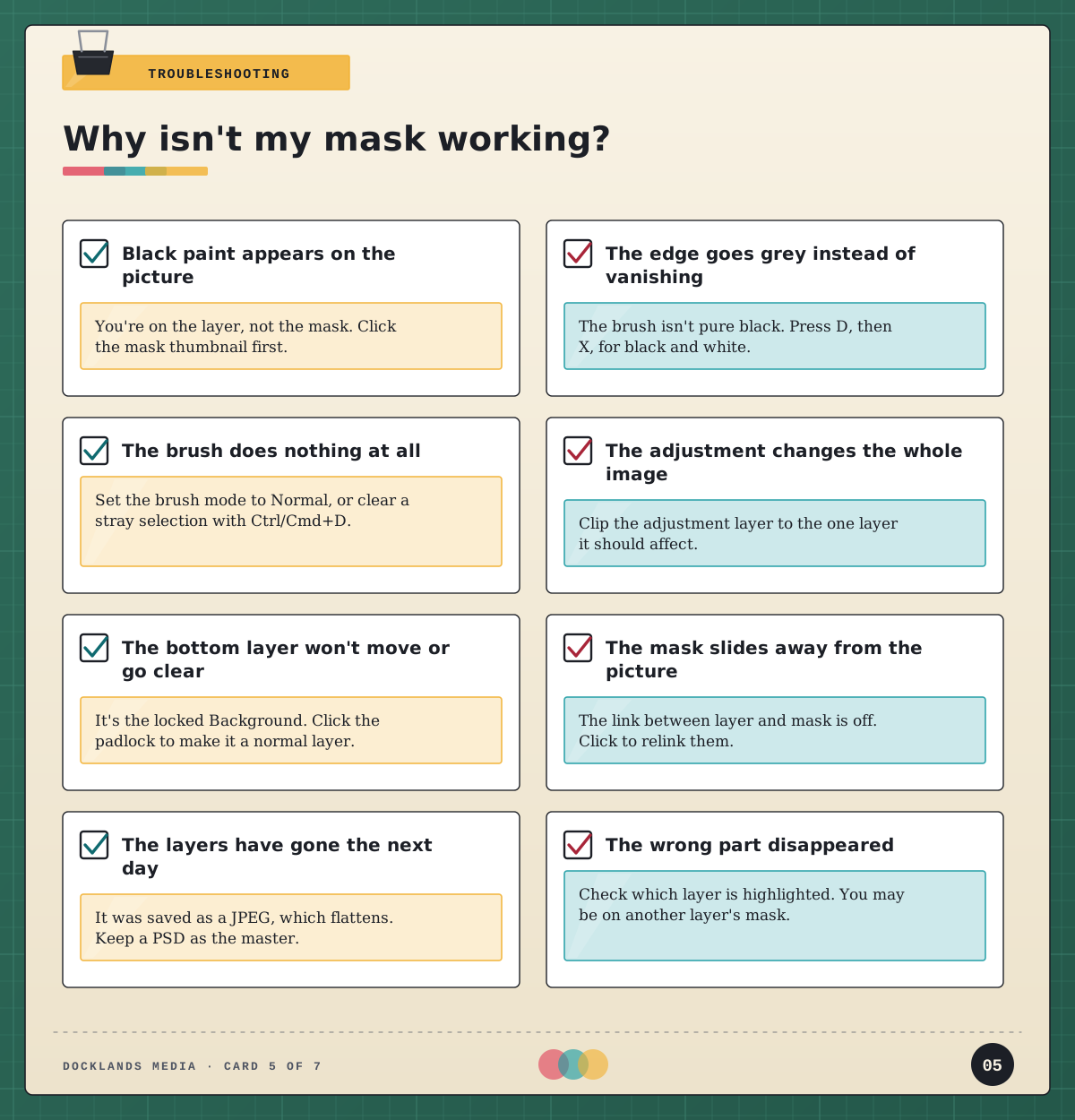
Most “my mask is broken” questions on Photoshop forums come down to the same few causes:
Black paint appears on the picture. You’re painting on the layer, not the mask. Click the mask thumbnail; a border shows which one is active.
The edge turns grey rather than disappearing. The brush isn’t pure black, or its opacity or flow is below 100%. Press D for black and white, and X to swap them.
The brush does nothing at all. Check the brush mode is Normal, and press Ctrl+D (Cmd+D) in case an old selection is limiting where you can paint.
An adjustment changes the whole picture. That’s the default. Clip it to the layer it’s meant for.
The bottom layer won’t move or go transparent. It’s the locked Background layer. Click the padlock to turn it into a normal layer.
The mask slides out of line with the picture. The link between layer and mask is off. Click between the two thumbnails to relink them.
The layers have vanished the next day. The file was saved as a JPEG, which flattens everything. Go back to the PSD, or start keeping one.
The wrong part disappeared. Check which layer is highlighted. It’s easy to paint on the wrong layer’s mask.
What carries over to Illustrator, InDesign, After Effects and Premiere?
Once “black hides, white reveals” makes sense, you’ll spot the same idea across Adobe’s other apps, with a few twists.
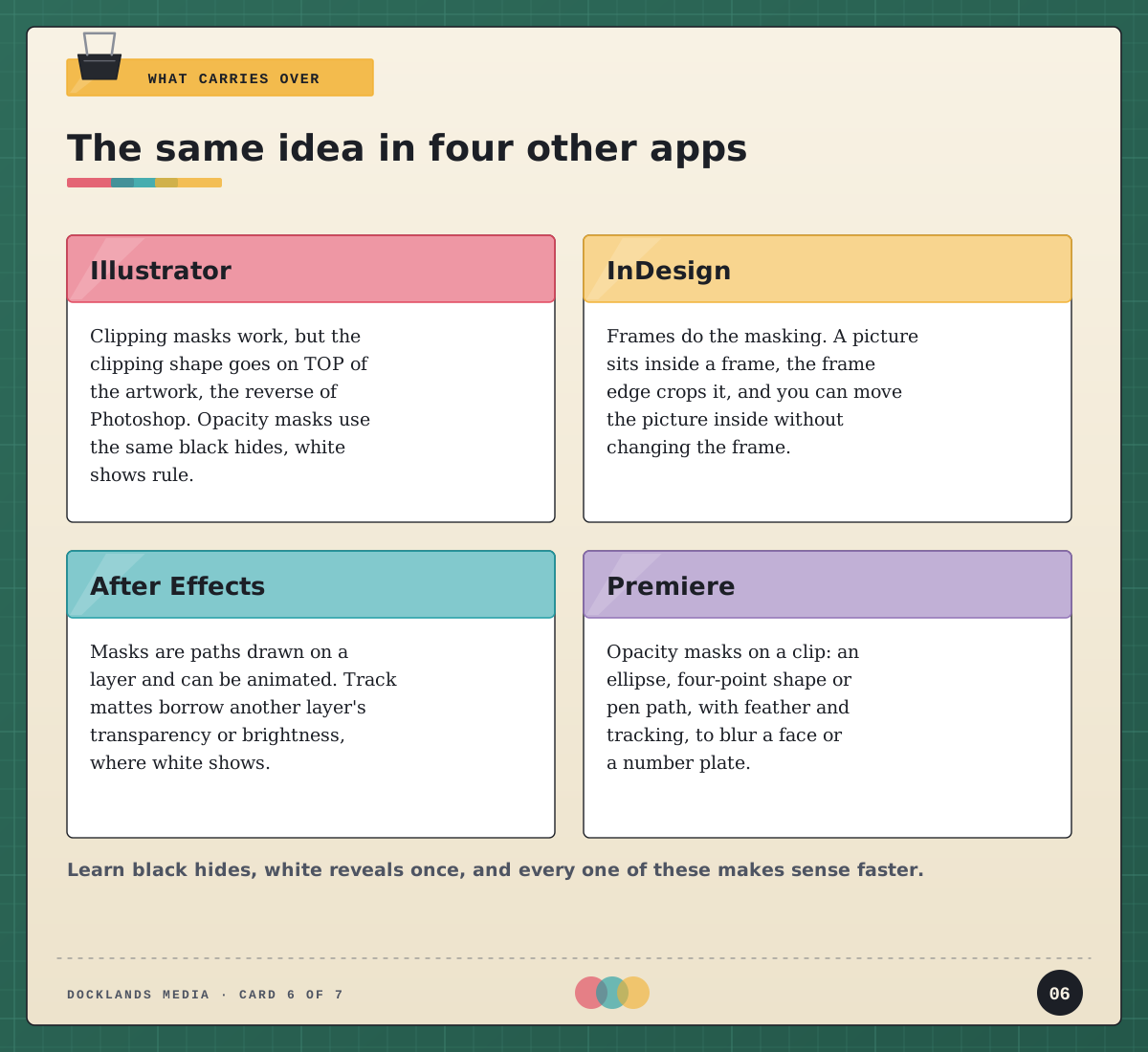
In Illustrator, clipping masks work the other way up: the shape that does the clipping sits on top of the artwork, whereas in Photoshop the base layer sits underneath. Illustrator’s opacity masks follow the familiar rule of black hides, white shows. In InDesign, frames do the masking: every placed picture sits inside a frame, and you can move or scale the picture without changing the frame, much like moving a masked layer. In After Effects, masks are paths drawn on a layer that can be animated, and track mattes borrow another layer’s transparency or brightness to decide what shows. In Premiere, opacity masks let you draw an ellipse, a rectangle, a polygon or a freehand pen path on a clip, feather it and track it, which is how editors blur a face or a number plate.
Our view: masking is one of the most transferable skills Photoshop teaches. Our Design Bundle: Beginner takes Photoshop, Illustrator and InDesign together over six days if you’d like to see the three side by side.
Where layers and masks fit in our Photoshop courses
Layers and masks run through all three levels of our Photoshop training. Photoshop Beginner (two days) covers creating, stacking and transforming layers, opacity and alignment, selections with Select Subject and Select and Mask, and masks for removing backgrounds. Photoshop Intermediate (three days) adds Curves and other adjustment layers, clipping masks and clipped adjustment layers, Colour Range for replacing backgrounds, Smart Objects and gradient fades on masks. Photoshop Advanced (three days) moves on to linked and unlinked masks, copying and inverting masks, removing halos, density and feather, sky replacement and Blend If.
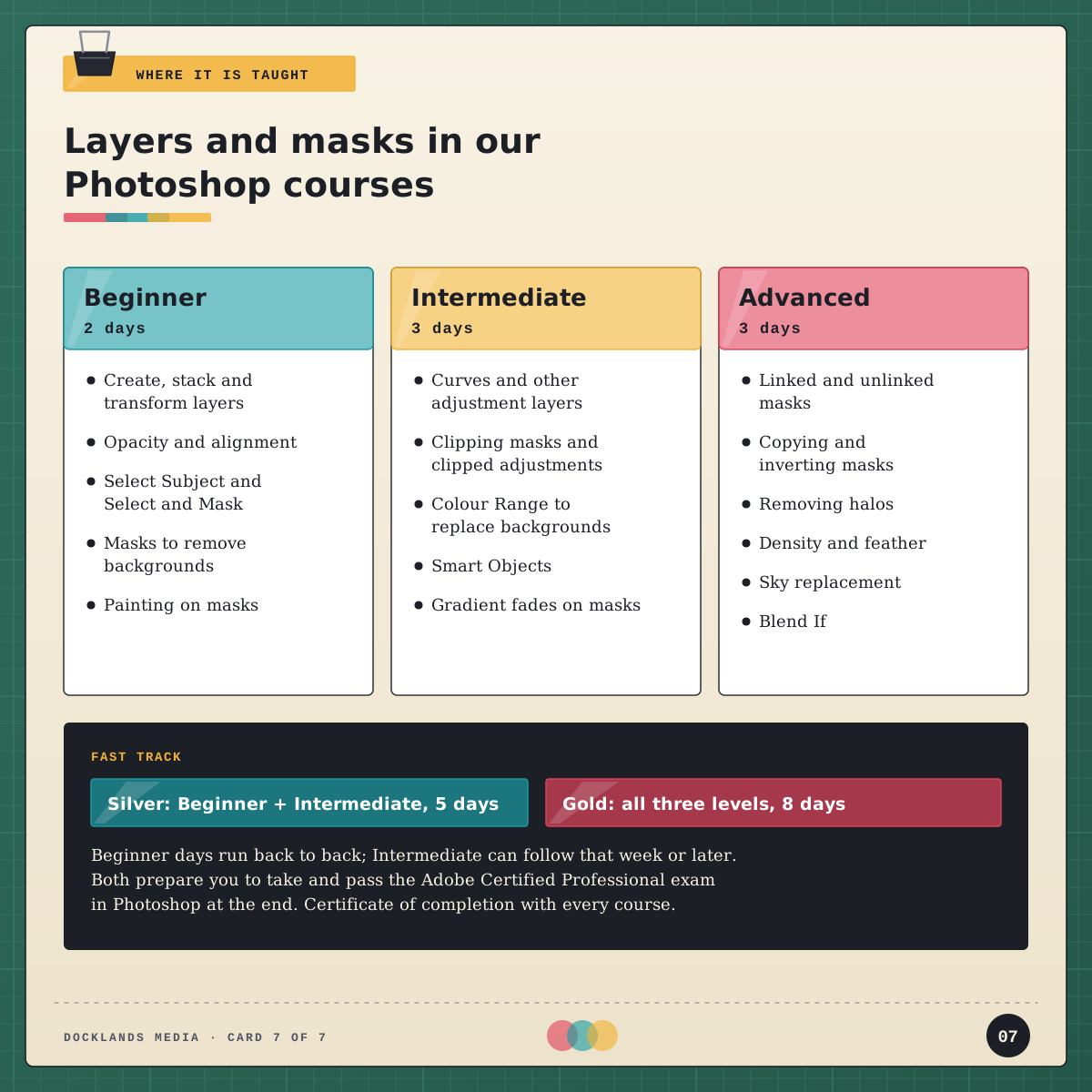
To go further in one go, Photoshop Fast Track Silver combines Beginner and Intermediate over five days, and Photoshop Fast Track Gold adds Advanced for eight. Both prepare you to take and pass the Adobe Certified Professional exam in Photoshop at the end of the course. The Beginner days run back to back, and the Intermediate part, also on consecutive days, can follow in the same week or a later one.
Every course includes a certificate of completion, and you can train in our London classroom or live online. Docklands Media is an Adobe authorised training partner, and we’re authorised by Adobe, Autodesk, Maxon, Blackmagic Design and Certiport. For a realistic idea of timescales, see how long it takes to learn Photoshop, and for what the exam involves, read our guide to the Adobe Certified Professional exam. Generative Fill results arrive as layers with masks too, as our post on using Photoshop’s AI features shows.
Next time you reach for the Eraser, ask whether you might want those pixels tomorrow. If the answer is maybe, add a mask.