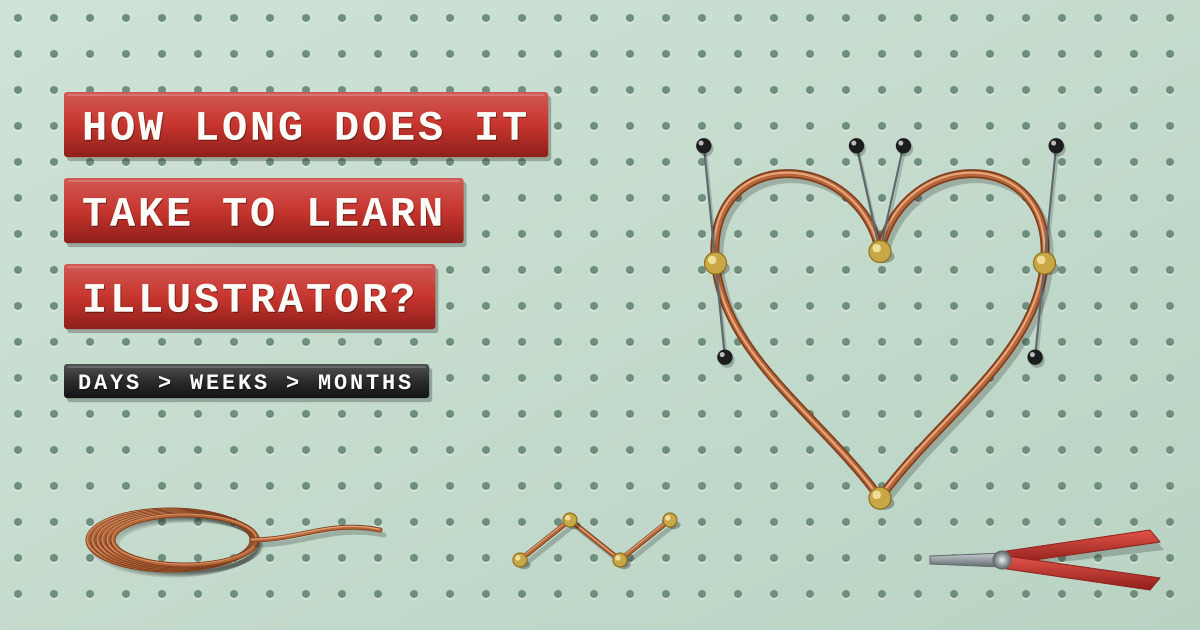
Try a quick test before reading on. Open Illustrator, or just picture it, and draw three things: a circle, a square and a heart. The circle and the square take seconds: pick the Ellipse or Rectangle tool, hold Shift and drag. The heart is where most beginners stall. It only needs four anchor points and a few handles with the Pen tool, yet first attempts tend to come out lumpy, lopsided or carrying twenty points where four would do.
That gap between the circle and the heart is the real answer. Finding your way round Illustrator’s tools takes days: with structured training you can handle shapes, colour, type, layers, artboards and export in about two days, which is what our Illustrator Beginner course covers. Drawing comfortably with the Pen tool takes a few weeks of short, regular practice on top. Working at a professional level, where your curves, spacing and colour choices look right first time, takes months and keeps improving with every project. Our rule of thumb: plan in days for the software, weeks for the Pen tool and months for the eye.
Three clocks, not one
Most answers to this question give a single number, which is why they disagree so much. It’s more useful to think of three clocks running at the same time, each at its own speed.
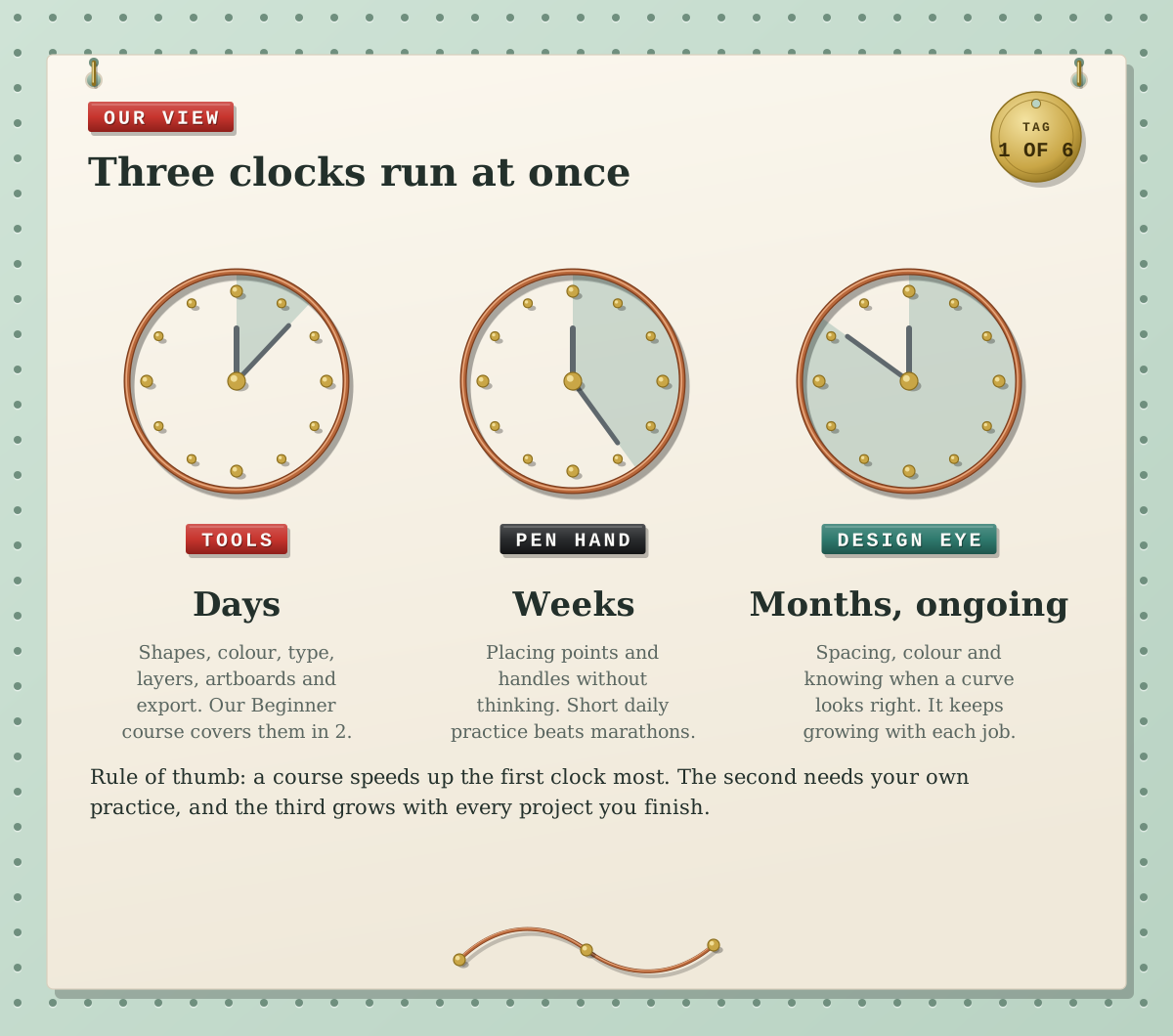
The tools clock is the fastest. Where the panels live, how the Selection and Direct Selection tools differ, how to combine shapes and how to save a file a printer will accept: that’s a short, finite list, and a good course gets through it quickly because someone shows you the order that makes sense.
The Pen clock is slower because it’s a hand skill, not knowledge. You can understand Bezier curves in ten minutes and still need weeks before your hand puts points in the right places without thinking.
The eye clock never really stops. Knowing that a logo needs a touch more space, or that a curve has a flat spot, comes from making lots of things and looking hard at them. Our view: don’t wait for this clock before calling yourself capable. Plenty of people do useful work in Illustrator while their eye is still developing.
The Pen tool is the real milestone
If you remember one thing from this post, make it this: how quickly you learn Illustrator mostly comes down to how quickly the Pen tool clicks. Click and you get a corner point joined by a straight line. Click and drag and you pull out direction handles, which bend the segment into a curve. Hold Alt (Option on a Mac) and you can move one handle on its own, which is how the dip at the top of a heart is made.
Ask on forums such as Reddit how long the Pen tool took to feel natural and the answers usually range from a few weeks to a few months of regular use. The people at the short end tend to have practised in small, deliberate steps rather than attempting whole illustrations on day one. Here’s the ladder we suggest.
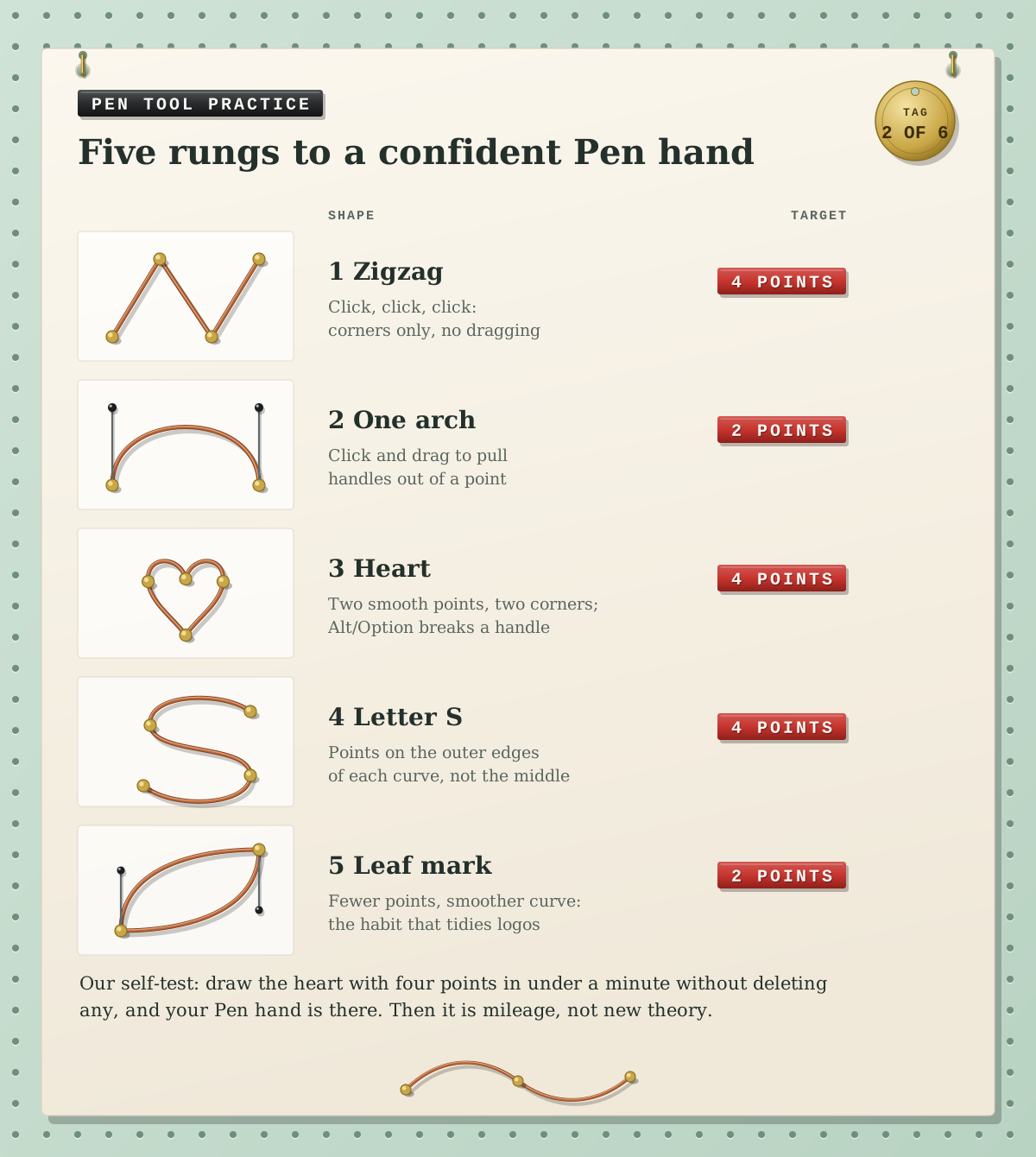
Zigzag. Clicks only. It teaches you that a click without a drag always makes a corner.
One arch. Two points, two drags. Notice that the curve follows the direction you drag in.
Heart. Four points: two smooth, two corners. This is the rung where most people need a few sessions.
Letter S. Put points on the outer edges of each curve, not in the middle of the bend.
Leaf mark. Two points and long handles. It shows the habit that tidies every logo: fewer points, smoother curves.
If the Pen tool feels like a wall, the Curvature tool (Shift+~) is a gentler start: click to add smooth points, Alt or Option-click for a corner, and double-click a point to switch between the two. Our self-test for being past the hard part: draw the heart with four points in under a minute without deleting any.
Already know Photoshop? Here’s what transfers
Photoshop users usually get through the tools clock faster, because a lot of the thinking carries over: layers, colour and gradients, type, and many shortcuts. If you’re still deciding which to learn, our guide on how long it takes to learn Photoshop covers the other side.
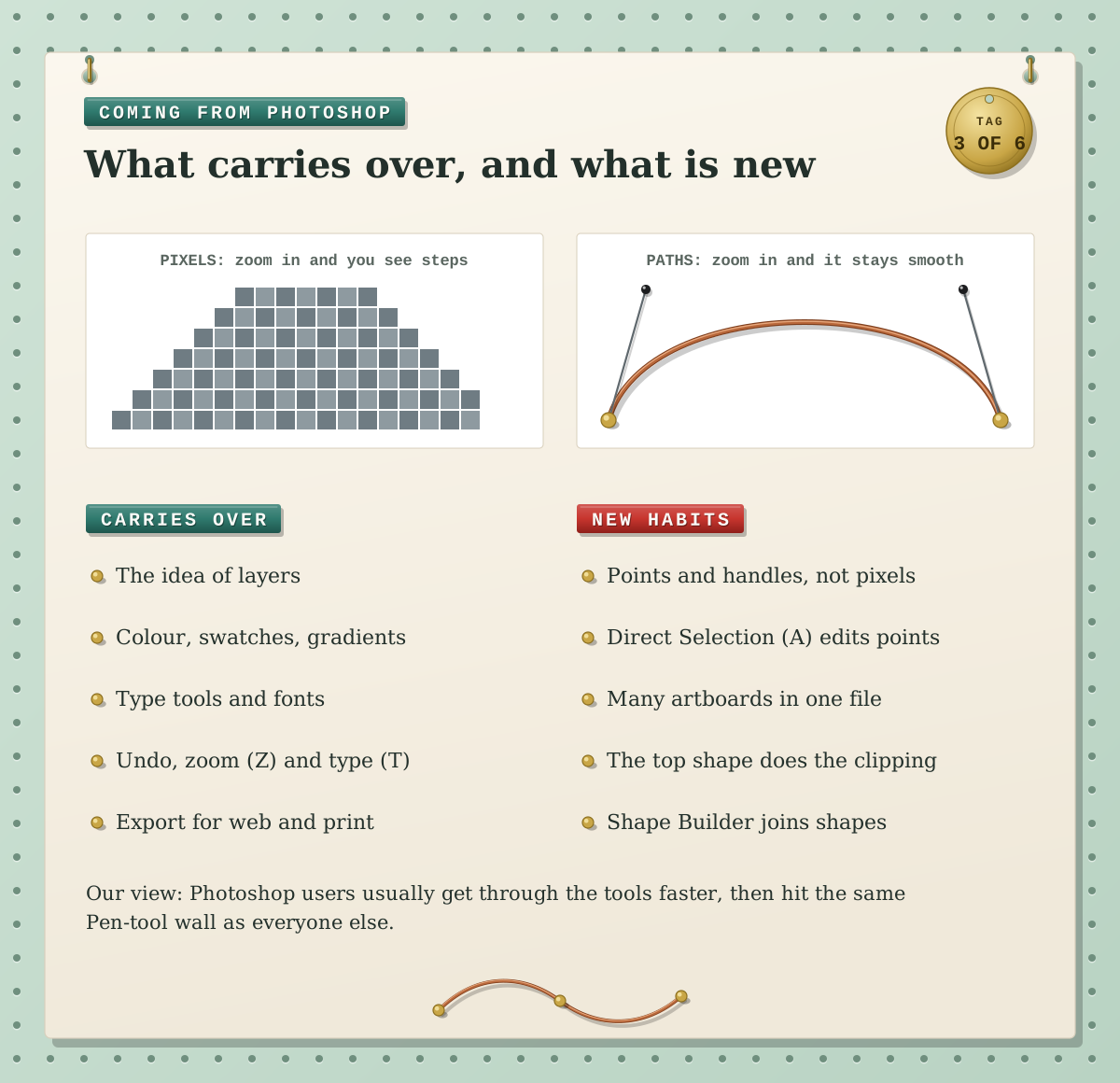
What trips Photoshop users up is that Illustrator works with paths, not pixels. You edit a shape by moving its points with Direct Selection (A), not by painting. A file can hold many artboards, so a business card, a social post and a banner can sit side by side. Clipping works the other way round, too: in Illustrator the shape on top does the clipping, while in Photoshop the layer underneath acts as the mask. And for a logo, the vector route really matters, as our post on Illustrator vs Photoshop for logo design explains. Our view: a Photoshop user gets a head start on the tools, then meets the same Pen-tool wall as everyone else.
Illustrator rarely travels alone
To see what employers expect, we read through current UK design-role job ads on Reed.co.uk and removed reposts of the same job. Of the 24 ads that named a specific Adobe app, 18 named Illustrator, and every one of those 18 also asked for Photoshop and InDesign. Junior roles were no exception: 6 of the 7 junior or graduate design ads named Illustrator.
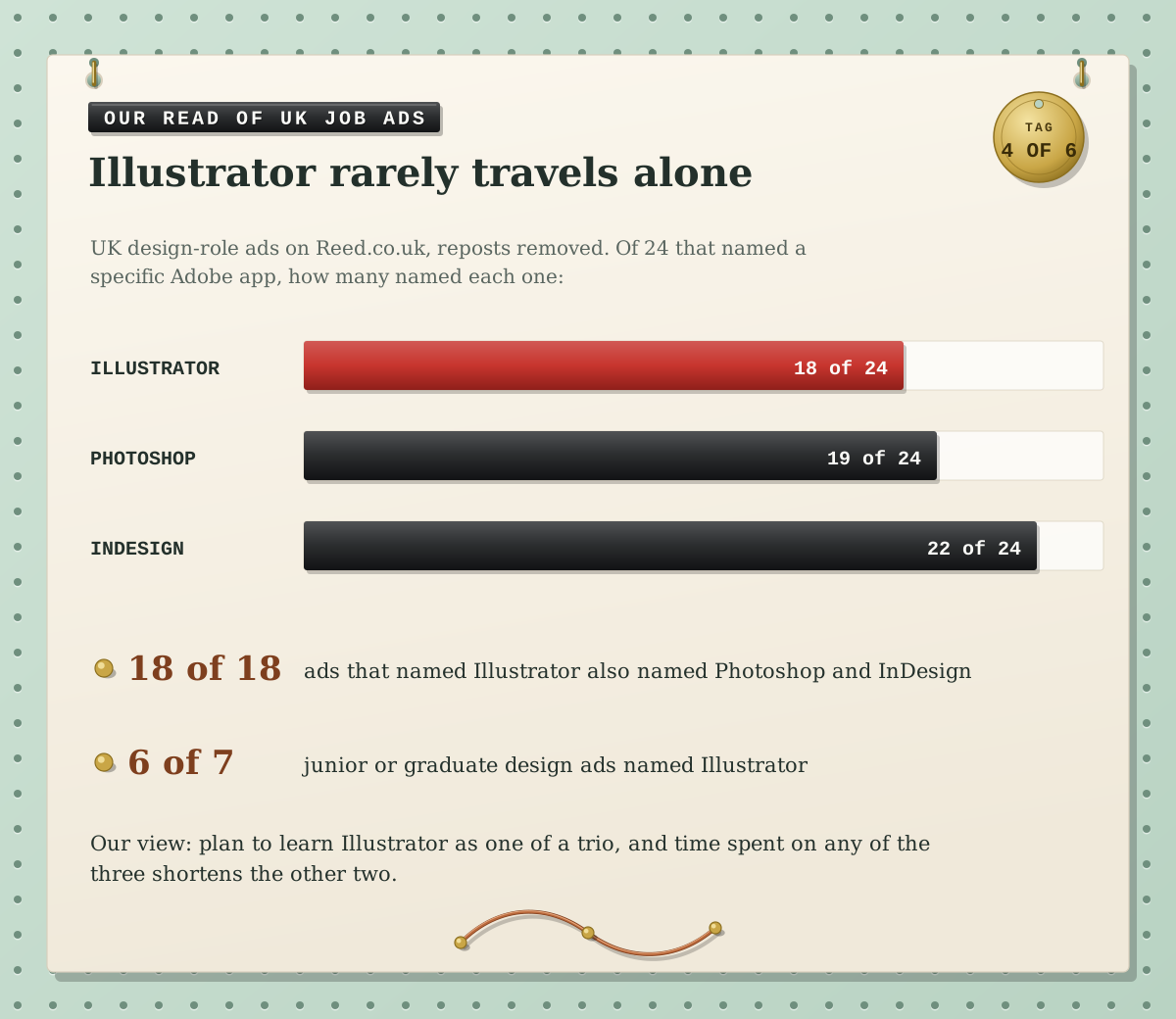
Our view: plan to learn Illustrator as one of a trio. That changes the time question in a helpful way, because each app makes the next one quicker. Colour, type and layer habits from Illustrator carry straight into InDesign, which we cover in how long it takes to learn InDesign.
Three readers, three timelines
How long it takes also depends on what you need to make. Here are three people we often train, and the route we’d suggest for each.
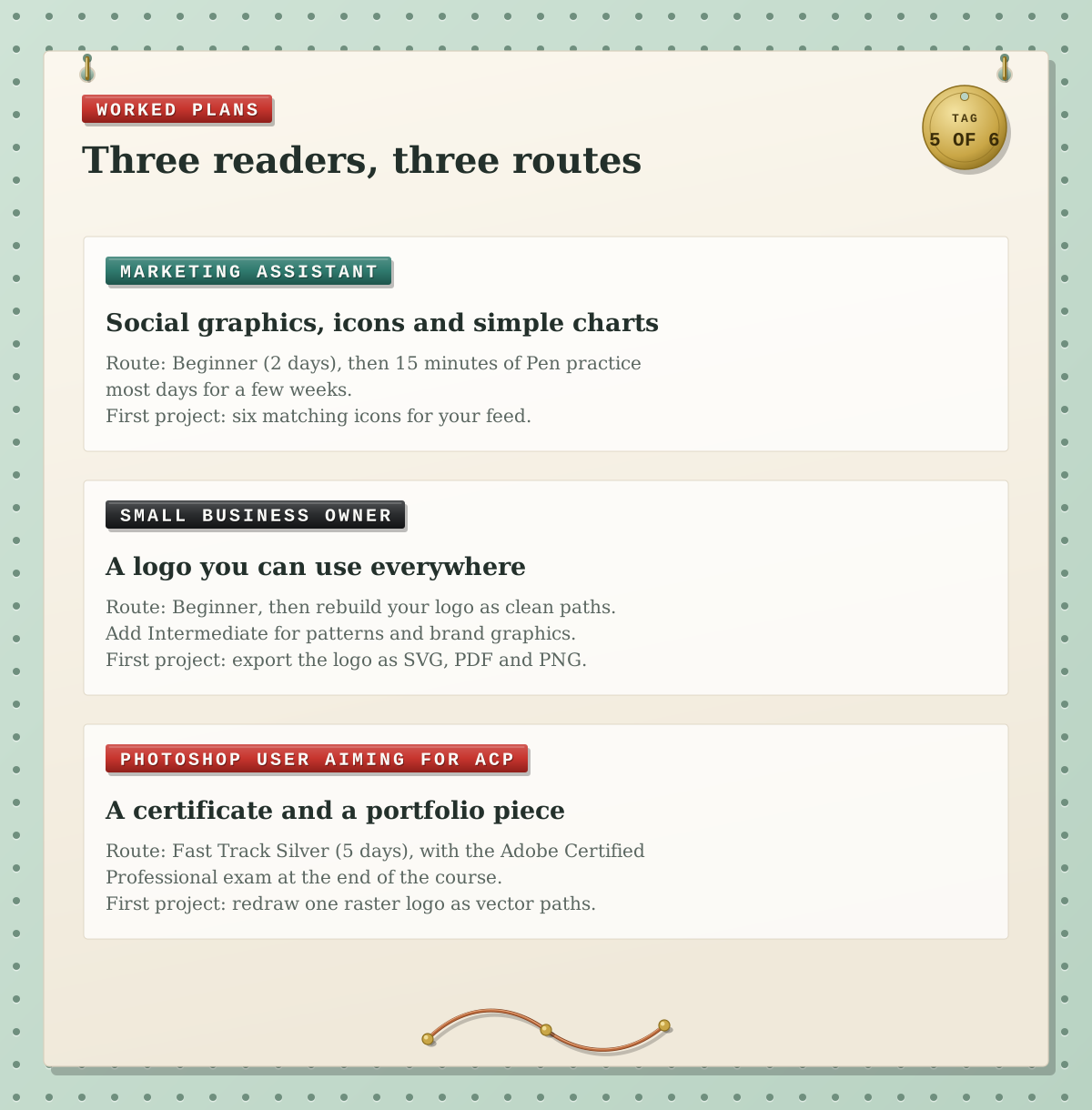
A marketing assistant making social graphics, icons and simple charts needs the tools more than deep illustration skills. The Beginner course plus about 15 minutes of Pen practice most days for a few weeks gets most people producing tidy, consistent graphics. A good first project is a set of six matching icons.
A small business owner who wants a logo they can use everywhere should start with Beginner, then rebuild the logo as clean paths and export it as SVG, PDF and PNG. If patterns, brand graphics or traced artwork come next, Illustrator Intermediate goes further with drawing and path techniques, patterns and Image Trace.
A Photoshop user who wants a certificate to show employers is best served by Illustrator Fast Track Silver: Beginner and Intermediate over five days, with the Adobe Certified Professional exam at the end of the course.
Habits that take weeks off the curve
None of these are shortcuts in the keyboard sense, but in our experience they save more time than any shortcut list. Treat them as our view rather than rules.
Build flat icons with Shape Builder first. Circles and rectangles merged with Shape Builder (Shift+M) often beat drawing the same outline with the Pen.
Check your paths in Outline view. View > Outline hides fills and strokes so stray points and hidden shapes show up straight away.
Turn on Smart Guides. They snap to centres, edges and angles, so you stop nudging objects by eye.
Name your layers. Thirty unnamed layers is how a ten-minute edit becomes an hour.
Keep an editable copy. Before you expand an effect or turn type into outlines, save a version you can still change.
Practise on real briefs. A flyer for a friend teaches more than another tutorial, because it has a deadline and a reader.
Where training fits, and the exam
Training mostly speeds up the first clock and gives the second a proper start. Our Illustrator Beginner course runs over 2 consecutive days and covers selecting and editing paths, transforming and aligning objects, drawing and freehand tools, layers, colour and swatches, type, combining shapes and export. Illustrator Intermediate (3 days) moves on to advanced drawing tools and path techniques, then patterns, gradients and transparency, Image Trace, recolouring and 3D effects. Illustrator Advanced (3 days) adds perspective grids, meshes, blends, charts, actions, print output and preparation for the Adobe Certified Professional exam.
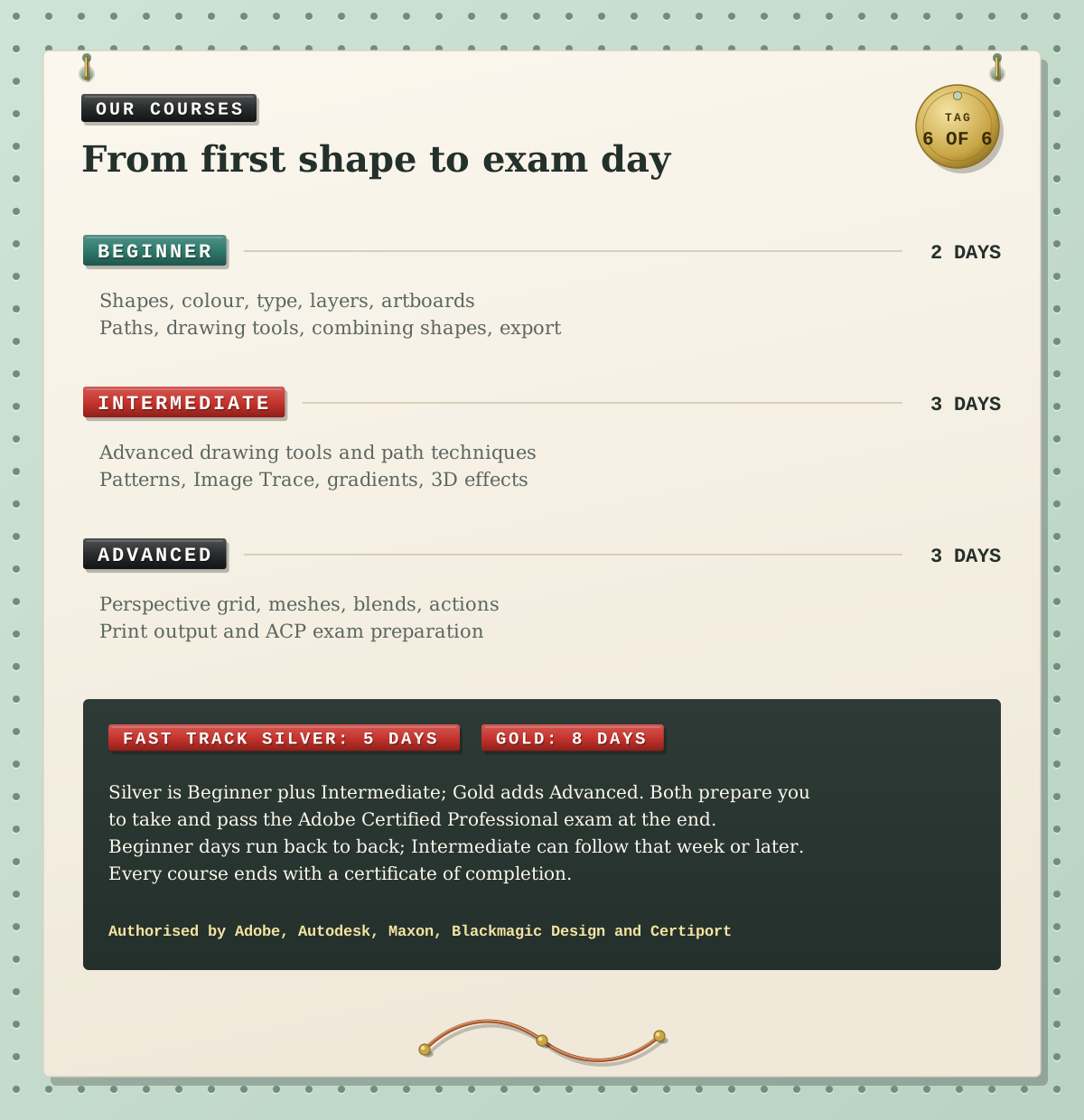
If you want the whole route in one booking, Fast Track Silver combines Beginner and Intermediate over 5 days, and Fast Track Gold adds Advanced for 8 days. Both prepare you to take and pass the Adobe Certified Professional exam in Illustrator at the end of the course. The exam lasts 50 minutes and mixes questions with live tasks inside Illustrator. You can split a Fast Track: the Beginner days run back to back, and Intermediate can follow in the same week or a later one.
Courses run in London or live online, and every course ends with a certificate of completion. Docklands Media is authorised by Adobe, Autodesk, Maxon, Blackmagic Design and Certiport. Whichever route you take, keep the heart test in mind: once four points feel easy, the rest of Illustrator comes quickly.