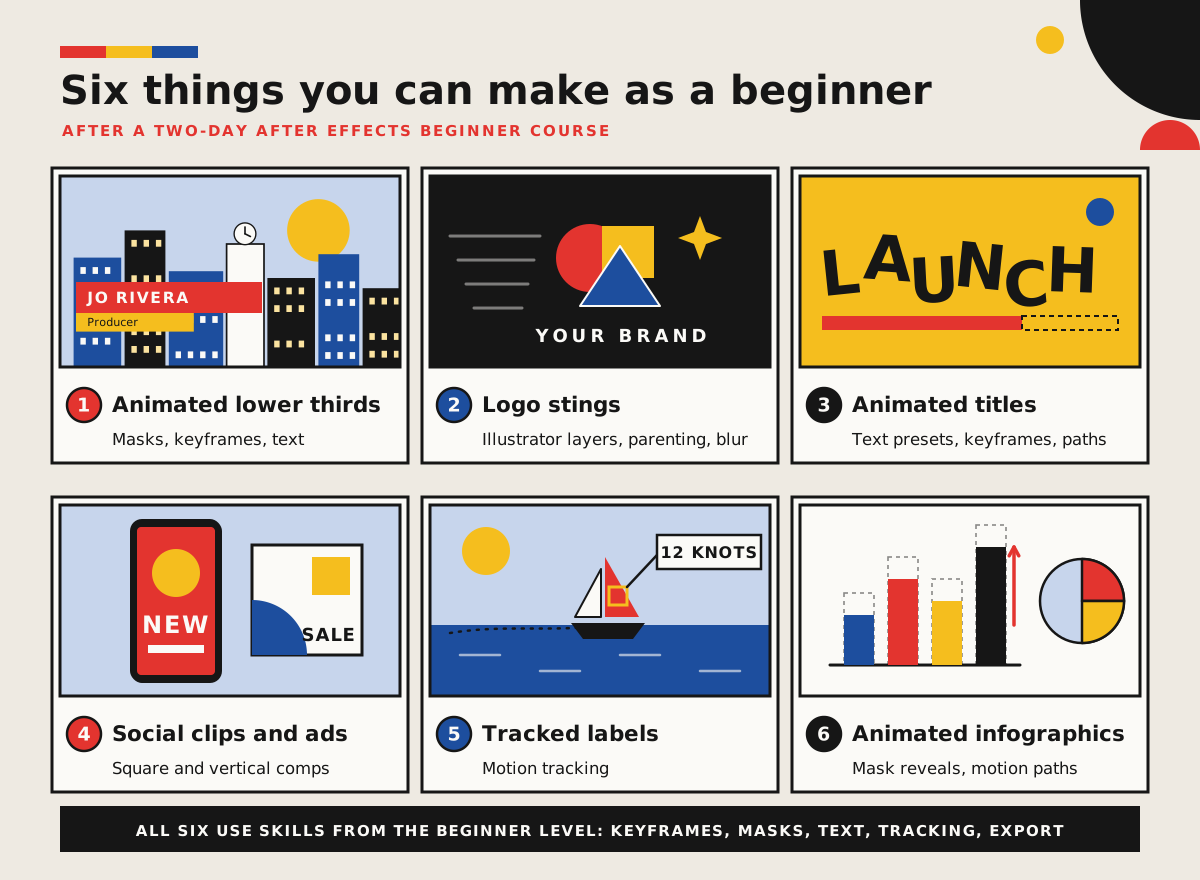
The short answer: after a two-day After Effects beginner course, you can make short, polished motion graphics on your own: animated lower thirds (name straps), logo stings, animated titles, social media clips and ads, simple animated infographics, and labels that follow something moving in your footage. You’ll know how to set up compositions, animate with keyframes, use masks, effects and adjustment layers, track motion and export for web, social and broadcast. Character animation, rotoscoping, 3D and advanced text animation come at the next levels.
After Effects is Adobe’s app for motion graphics and visual effects: if Premiere is where you edit the story, After Effects is where you make things move. Here’s what’s realistic after a short course, with example projects and the skills behind each one.
What does an After Effects beginner course cover?
Our two-day After Effects Beginner course starts from zero and covers the building blocks that almost every project uses:
Compositions and media. Setting up compositions with the right size, frame rate and length, and importing video, images and layered Photoshop and Illustrator files.
Keyframe animation. Animating position, scale, rotation, anchor point and opacity, drawing motion paths (including with Motion Sketch) and adding motion blur.
Layers that work together. Parenting and pre-composing, so bigger projects stay tidy.
Effects, masks and adjustment layers. Applying effects, drawing masks with the shape tools and the Pen tool, and adding a look to several layers at once.
Text and tracking. Animating text with presets and your own keyframes, and attaching text or graphics to moving footage with motion tracking.
Exporting. Rendering from the Render Queue for web, social media and broadcast.
What can you make after an After Effects beginner course?
Quite a lot. The first six projects below are realistic with beginner skills; the last two show what the next levels add.
Project | What it is | Where it’s used | Key After Effects skills | Course level |
|---|---|---|---|---|
Animated lower third | A name-and-title strap that animates on and off screen | Interviews, webinars, event and corporate videos | Masks, keyframes, text, pre-composing | Beginner |
Logo sting | A short animated reveal of a logo | Video intros and outros, presentations, social posts | Layered Illustrator files, keyframes, parenting, motion blur, effects | Beginner |
Animated titles | Headlines, quotes and key messages that animate on | Social media, YouTube, adverts | Text animation presets, keyframed text, text on a path | Beginner |
Social clips and ads | Short promos mixing footage, images and text, in square or vertical formats | Instagram, TikTok, LinkedIn, paid social | Compositions, effects, adjustment layers, exporting for social | Beginner |
Tracked labels | Text or graphics that follow a moving object in your footage | Product demos, travel and sports videos, explainers | Motion tracking | Beginner |
Animated infographics | Charts, icons and maps that build on screen | Reports, explainer videos, presentations | Mask reveals, motion paths, parenting | Beginner |
Character animation | Illustrations brought to life with bendable joints | Explainers, social content | Puppet Pins, the Graph Editor, expressions | Intermediate |
Compositing and visual effects | Cutting a subject out of its background, green screen and 3D scenes | Adverts, music videos, film and TV | Object Matte, keying, 3D layers and cameras | Intermediate and Advanced |
How do you animate a lower third in After Effects?
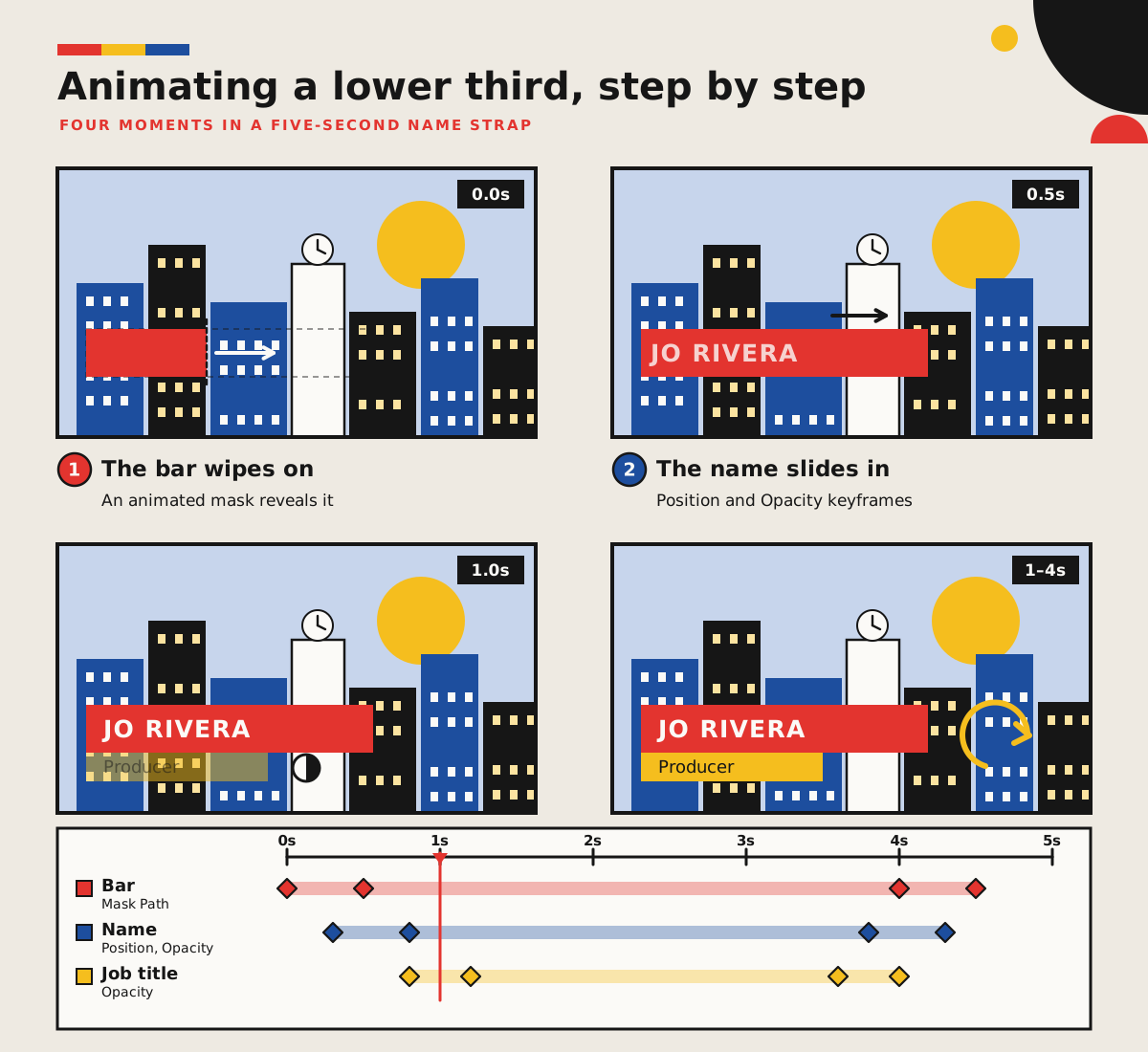
A lower third is the classic first project, because it uses most of the beginner toolkit in a few seconds of animation. A typical build looks like this:
Set up a composition that matches your video, for example 1920 × 1080 at 25 frames per second.
Draw a coloured bar and add text layers for the name and job title.
Wipe the bar on with an animated mask, then keyframe the name’s position and opacity so it slides in just after.
Fade up the job title, hold everything for a few seconds, then copy and reverse the keyframes to take it off.
Reuse it. Pre-compose the layers, change the text for each speaker, and render with a transparent background (for example, Apple ProRes 4444 with RGB + Alpha) to place over any video.
Can a beginner make a logo animation?
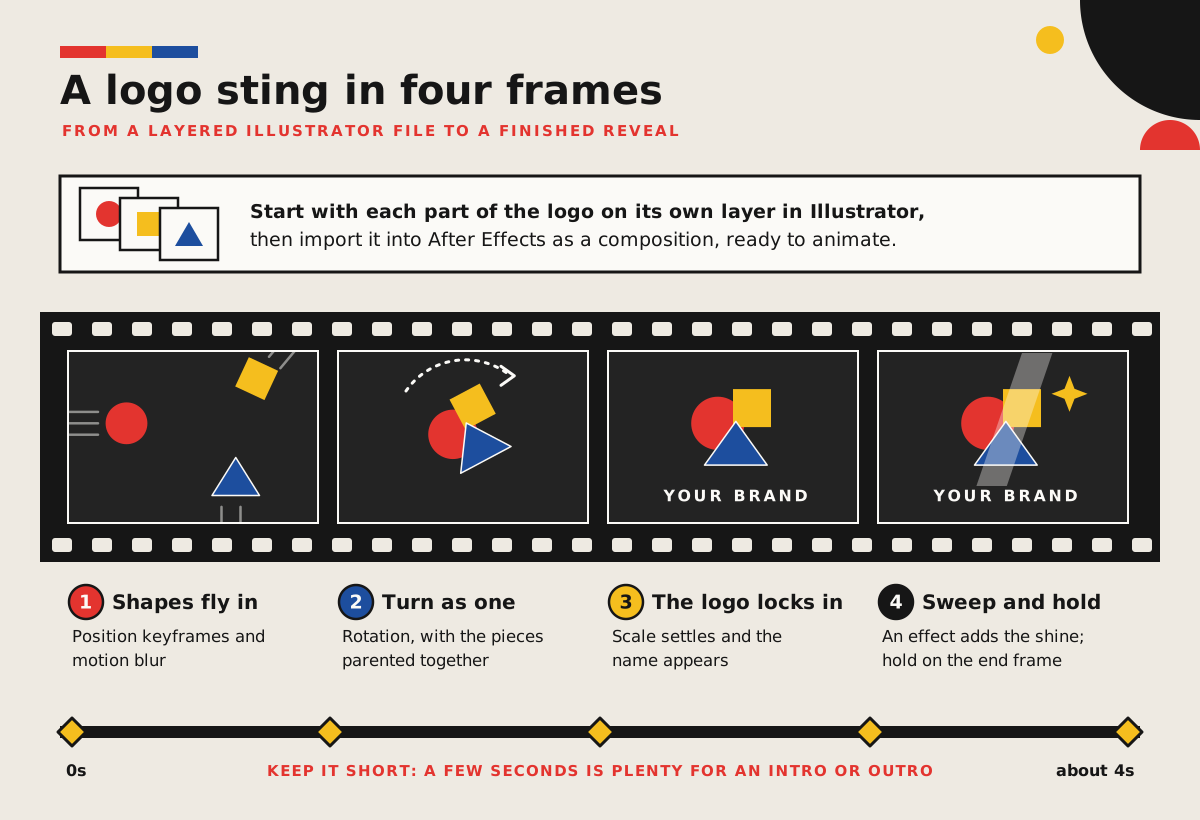
Yes. A logo sting is one of the most satisfying beginner projects, and many businesses want one for the start and end of their videos. The trick is preparation: if each part of the logo sits on its own layer in Illustrator, After Effects can import the file as a composition with every layer kept separate, ready to animate.
From there, you bring the pieces in with position, scale and rotation keyframes, parent them so they move as one, and switch on motion blur so fast moves look smooth. An effect such as a glow or a light sweep adds the finish. Keep it short: a few seconds is plenty for an intro or outro.
How do you animate text for social media in After Effects?
Text is where most marketers start. After Effects includes a large library of text animation presets, such as typewriter and fade-in effects, that you apply from the Effects & Presets panel and then adjust with your own keyframes. On the beginner course you also animate text along a path and use masks to reveal it.
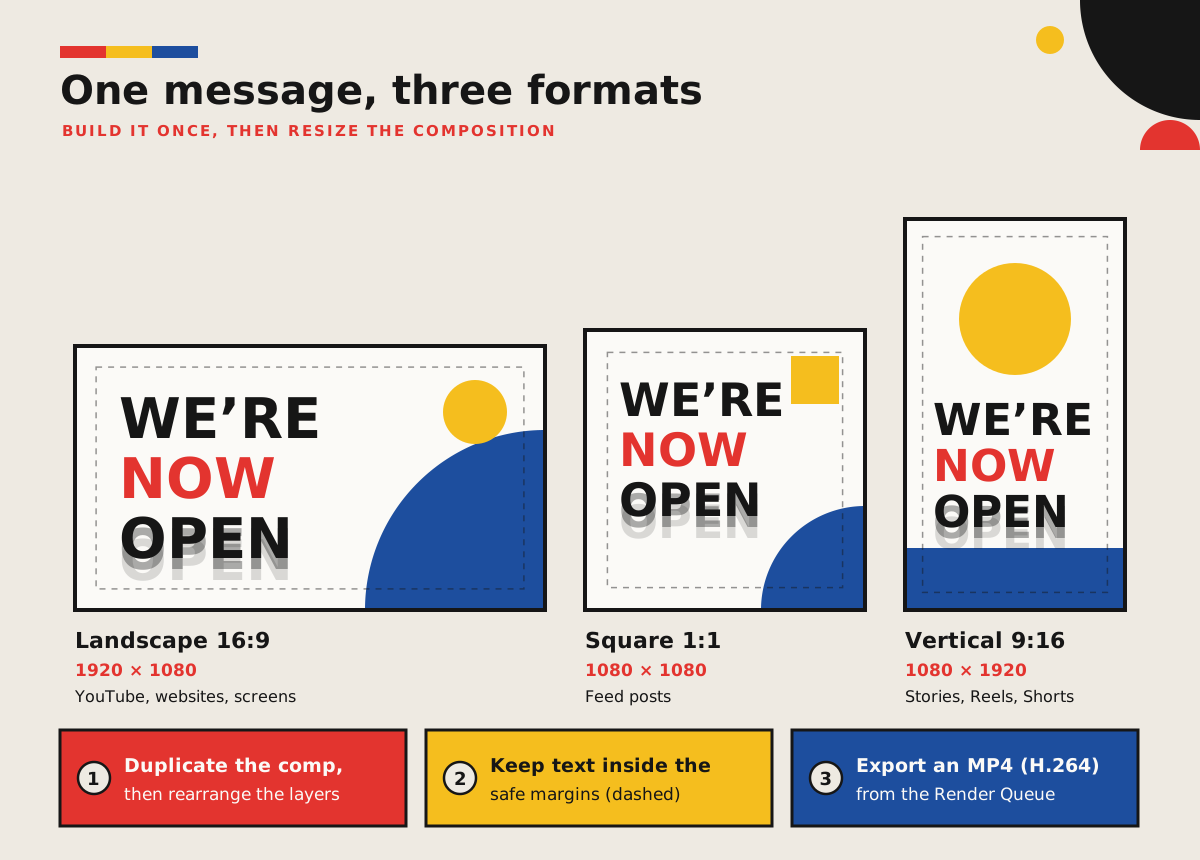
For social media, build one composition per format: landscape (16:9), square (1:1) and vertical (9:16). Duplicate your finished composition, change its size and rearrange the layers, keeping important text inside the safe margins. Then export an MP4 (H.264) straight from the Render Queue, or send the composition to Adobe Media Encoder for more presets, including animated GIFs.
Keep each message on screen long enough to read, with strong contrast against the background. Readable, accessible text overlays are even part of the Adobe Certified Professional exam objectives.
How do After Effects and Premiere work together?
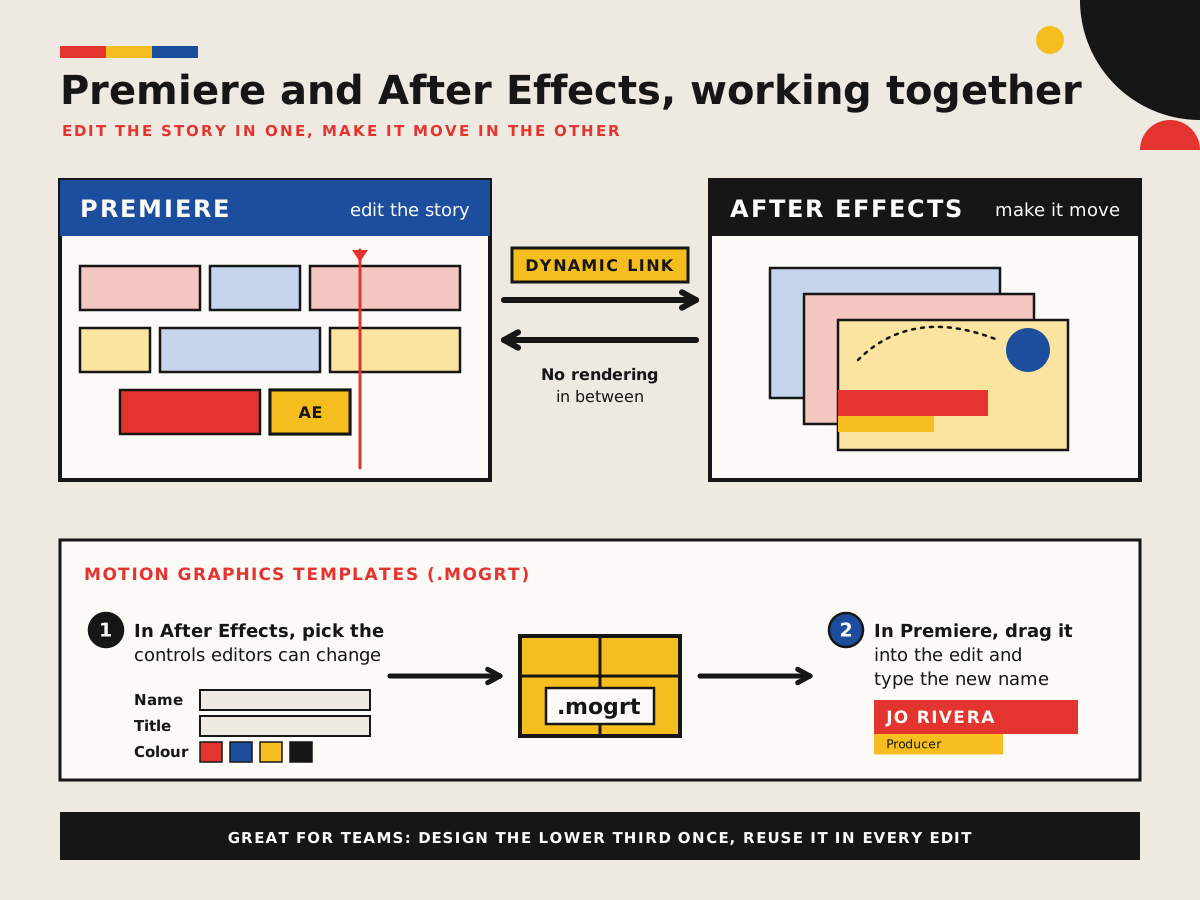
Many videos are edited in Premiere and get their motion graphics from After Effects, and the two apps are built to share work. With Dynamic Link, you can right-click clips in a Premiere sequence and choose Replace With After Effects Composition. After Effects opens a linked composition with the same settings, and any changes you make there update in your edit without rendering. Both apps need to be the same version for this to work.
The other route is Motion Graphics templates. In After Effects, the Essential Graphics panel lets you choose which properties, such as the name, job title and colour of a lower third, other people can change. You export it as a .mogrt file, and editors drag it into their Premiere timeline from the Graphics Templates panel and edit those controls in the Properties panel. It’s a great way for a marketing team to keep every video on brand.
If you edit as well as animate, the Premiere Beginner course pairs naturally with After Effects, and the four-day Video Bundle: Beginner combines both beginner courses.
What do you learn after the beginner level?
The beginner level covers clean, simple motion graphics. The next two levels make motion feel more professional and open up visual effects and 3D.
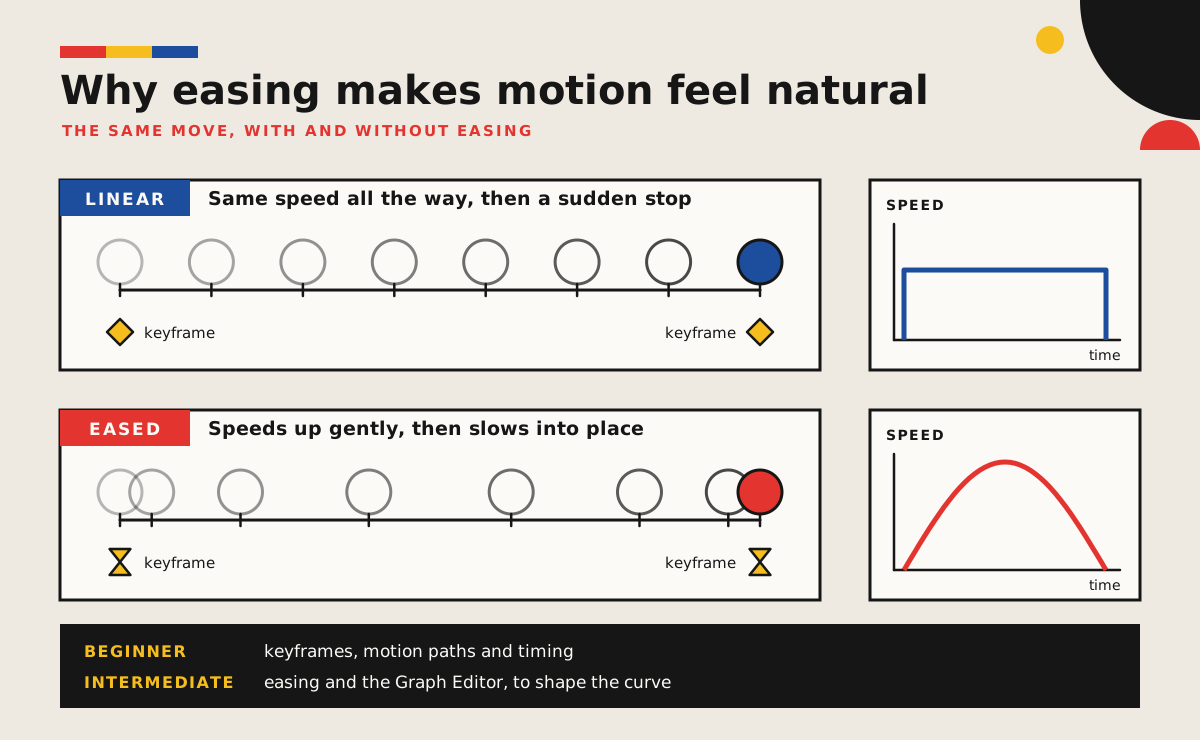
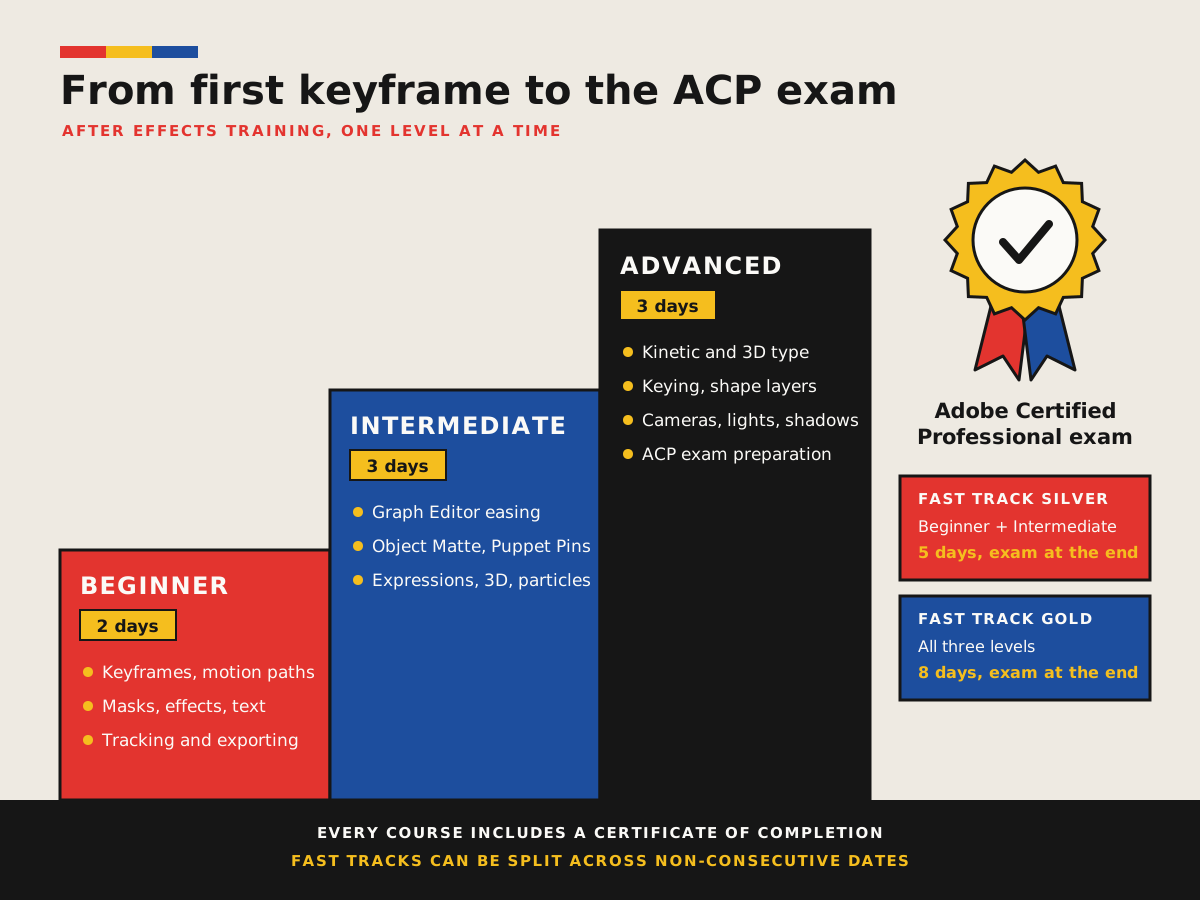
The three-day After Effects Intermediate course starts with timing: easing in and out, and fine-tuning motion in the Graph Editor, so stiff, robotic moves feel natural. It also covers custom text animators, Puppet Pin animation, write-on effects, expressions such as wiggle and loops, 3D layers and cameras, particles and rotoscoping. In the latest version of After Effects, the AI-powered Object Matte tool, which replaces the classic Roto Brush, isolates a subject with a click and tracks it across frames.
The three-day After Effects Advanced course adds kinetic typography synced to audio, 3D text, time remapping, keying with Keylight, shape layer animation with Trim Paths and the Repeater, and 3D scenes with cameras, lights and shadows. It also covers working with Cinema 4D; see how Cinema 4D and After Effects work together, or start 3D with Cinema 4D Beginner.
Can you get certified in After Effects?
Yes. Every Docklands Media course includes a certificate of completion, and you can also take Adobe’s own certification exam, Visual Effects and Motion Graphics Using Adobe After Effects, which gives you the Adobe Certified Professional (ACP) credential. Delivered by Certiport, it combines multiple-choice questions with tasks you complete live in the app, and it covers project setup, layers, animation, compositing and exporting, plus industry knowledge such as copyright, accessibility and the principles of animation.
The quickest route is a Fast Track. After Effects Fast Track Silver (5 days) combines the Beginner and Intermediate levels, and After Effects Fast Track Gold (8 days) covers all three. Both are designed to prepare you to take and pass the ACP exam at the end of the course, while everything is fresh. If you can’t take several days off in a row, a Fast Track can be split across non-consecutive dates. You can also add the exam when you book After Effects Intermediate or After Effects Advanced.
Docklands Media is a Certiport Authorised Testing Centre, so you can take the exam at our London centre or online from home.
How can you learn After Effects in London or online?
Docklands Media is an authorised training partner of Adobe, Autodesk, Maxon, Blackmagic Design and Certiport, and our After Effects courses are taught by Adobe Certified instructors in small groups, in London or live online.
Start with After Effects Beginner (2 days), then move on to After Effects Intermediate (3 days) and After Effects Advanced (3 days). To cover more in one go, choose Fast Track Silver (5 days) or Fast Track Gold (8 days). If you’re heading into motion design, the Motion Graphics Bundle: Beginner (8 days) combines After Effects with Photoshop, Illustrator and Cinema 4D. You’ll leave with exercises you can use to start a motion graphics portfolio. Browse all our After Effects courses.