“Which LUT should I use?” is usually the first thing people ask when they open the Colour page in DaVinci Resolve, and it’s the wrong place to start. A LUT is a fixed recipe that turns one set of colours into another. It was built for someone else’s footage. Put one on a clip that’s a stop too dark with a blue cast and you get a stylish version of a clip that’s a stop too dark with a blue cast.
Colour grading in Resolve works best as two jobs done in a fixed order. First you correct: set the exposure, take out any colour cast and bring back contrast, checking each move on the scopes. Then you grade: match the shots to each other, draw the eye with windows and qualifiers, and add the look last. Each step sits in its own node, so you can switch any one of them off and see exactly what it’s doing.
Below is that workflow followed through one ordinary phone clip, a node-by-node starter tree, a checklist for grades that look wrong, and which tools you get in the free version. It’s the core of our DaVinci Resolve Intermediate course.
Correct first, then grade
Correction is repair. You’re making the camera’s version of the scene look like the scene did. Grading is choice: a warmer evening, cooler shadows, a product that stands out from its background. The order matters because every tool responds to what reaches it. A warm look on a shot with a blue cast spends half its effort cancelling the blue, so the next shot, which never had the cast, comes out orange.
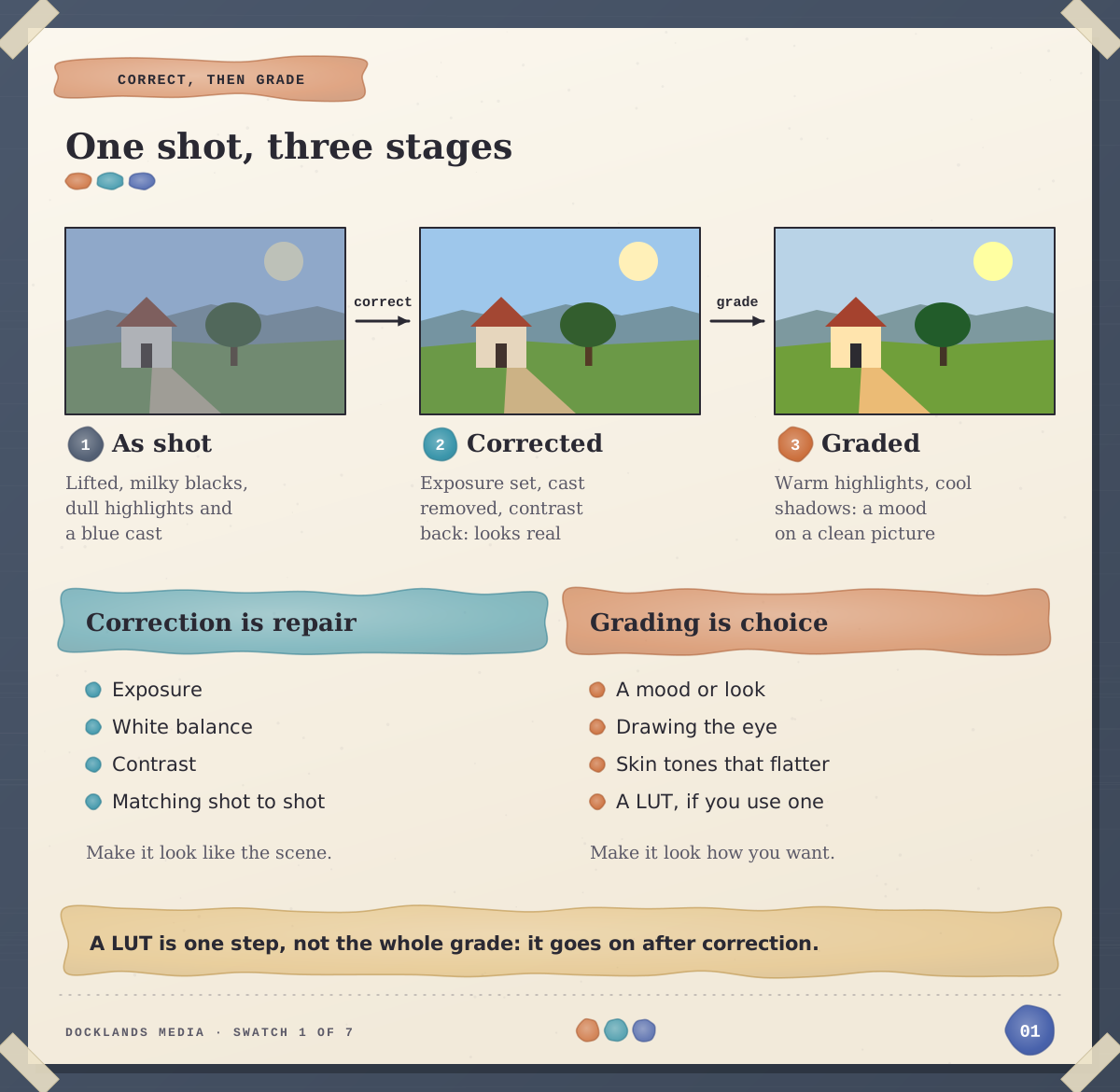
Our view: fix things in the order a viewer would notice them. People spot a picture that’s too dark before one that’s slightly blue, and a colour cast before a lack of punch. So it’s exposure, then balance, then contrast, then matching, and only then the look.
The Colour page in five minutes
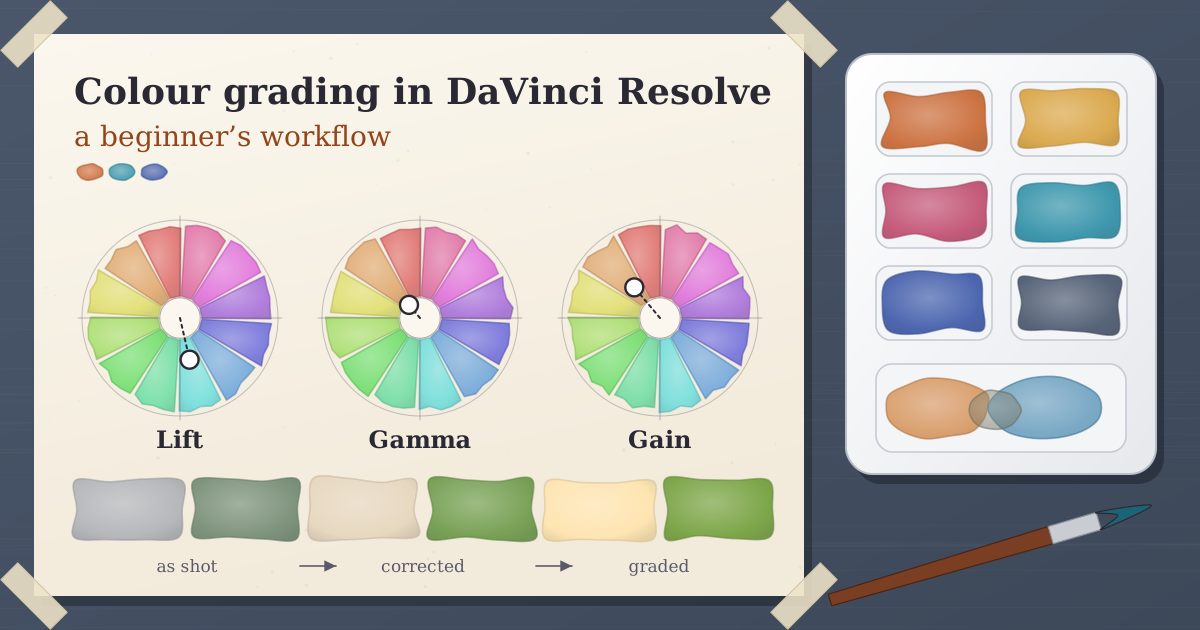
The viewer sits in the middle, the Gallery on the left and the Node Editor on the right. Underneath are the Primaries colour wheels: Lift for the shadows, Gamma for the midtones, Gain for the highlights and Offset for the whole image at once. Drag the dot in the middle of a wheel to push that range towards a colour, and drag the master wheel slider beneath it to make that range brighter or darker. The ranges overlap, which is why a small Lift move nudges the midtones too.
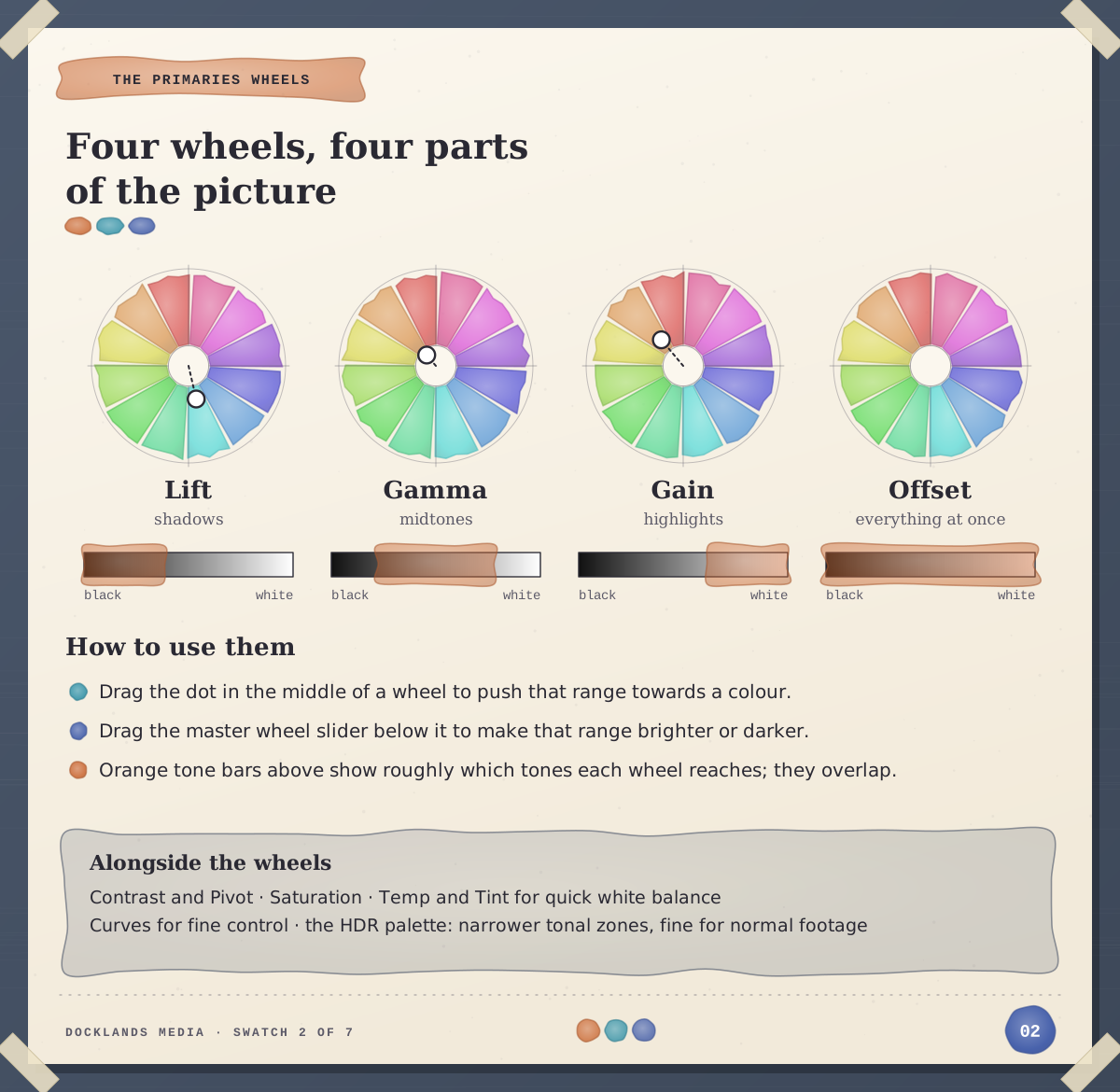
Alongside sit Contrast, Pivot, Saturation, and Temp and Tint for quick white balance. Curves give finer control, and the HDR palette, despite its name, works well on ordinary footage.
How do you read the scopes?
Your eyes adjust to a colour cast within minutes, and most laptop screens aren’t accurate. Scopes don’t drift. Three do most of the work:
Waveform: the picture from left to right, with brightness running up the side from 0 (black) to 1023 (white). Shadows piled against the bottom are crushed; a flat line along the top means clipped highlights.
RGB parade: the same view split into red, green and blue. On something neutral, like a white wall, the three traces should sit level. If blue sits higher, the shot is cool.
Vectorscope: hue as the angle and saturation as the distance from the centre. Switch on the skin tone indicator and you get a line between red and yellow where skin of every complexion tends to fall.
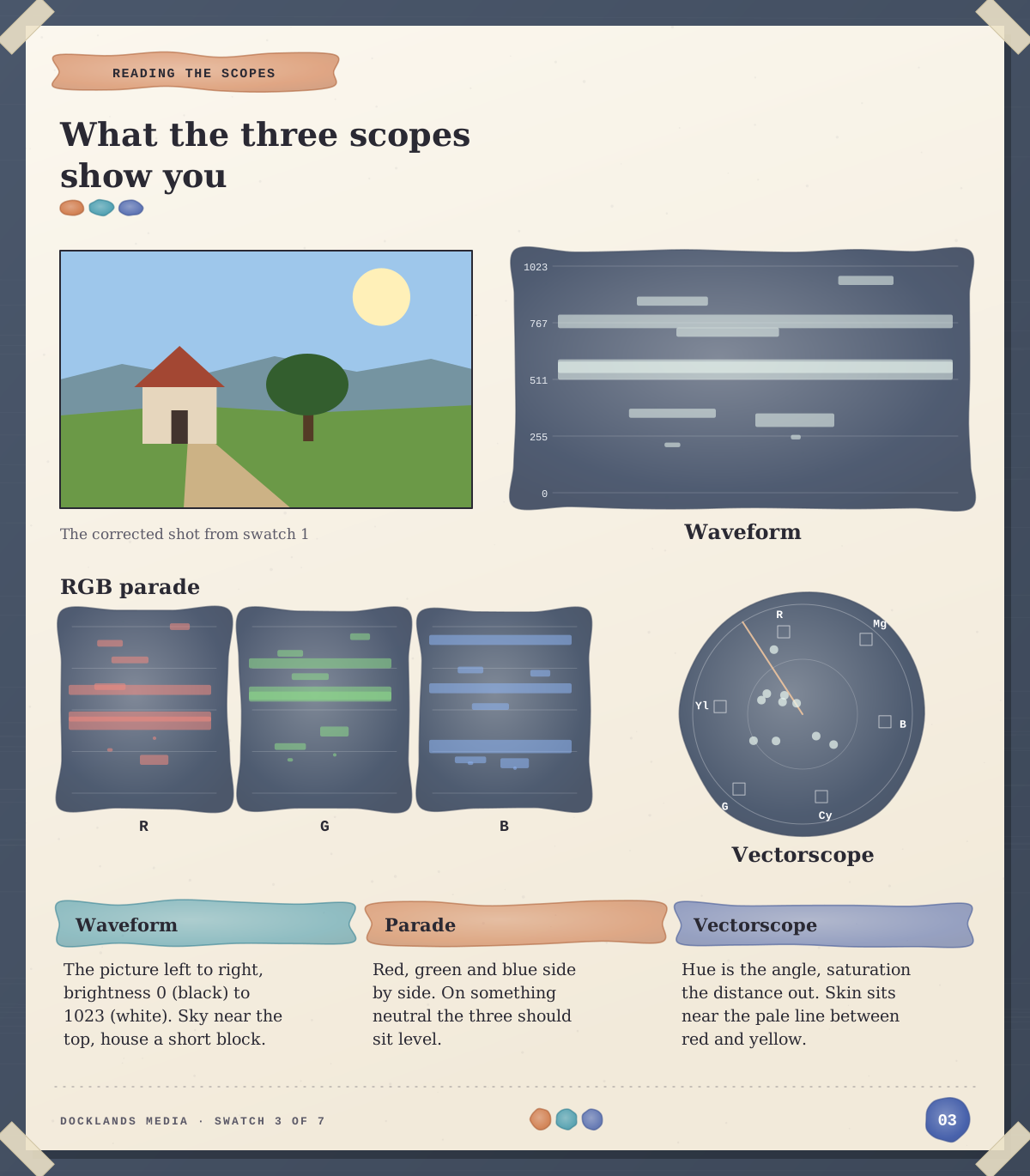
Scopes tell you what’s in the picture, not what it should look like. Use them to correct, then use your eyes, and a reference still, to grade.
One clip, six nodes: a worked example
Take twenty seconds of phone footage of a ceramic mug on a café windowsill. It’s a little dark, the window has given it a blue cast, and the mug gets lost against the bright background. Add each node with Alt+S (Option+S on a Mac), and name it by right-clicking and choosing Node Label.
Input. If the footage is HDR or log, convert it here with a Color Space Transform, or let colour management do it project-wide, so every later node sees a normal picture. Standard footage can skip this.
Exposure. Use Offset or the master wheels until the waveform fills the range without slamming into either end.
Balance. Watch the parade on the white window frame and pull the wheels (or Temp) away from blue until the three traces line up.
Contrast and saturation. Set contrast around the Pivot first, then add a little saturation. Contrast changes how saturated colours look, so saturation comes second.
Window. Draw a soft circular Power Window around the mug and lift Gain slightly inside it. Track it so it follows any camera drift.
Look. Only now: a little warmth in Gain, a touch of teal in Lift, or a LUT. To use a LUT at less than full strength, turn down Key Output Gain in the Key palette.
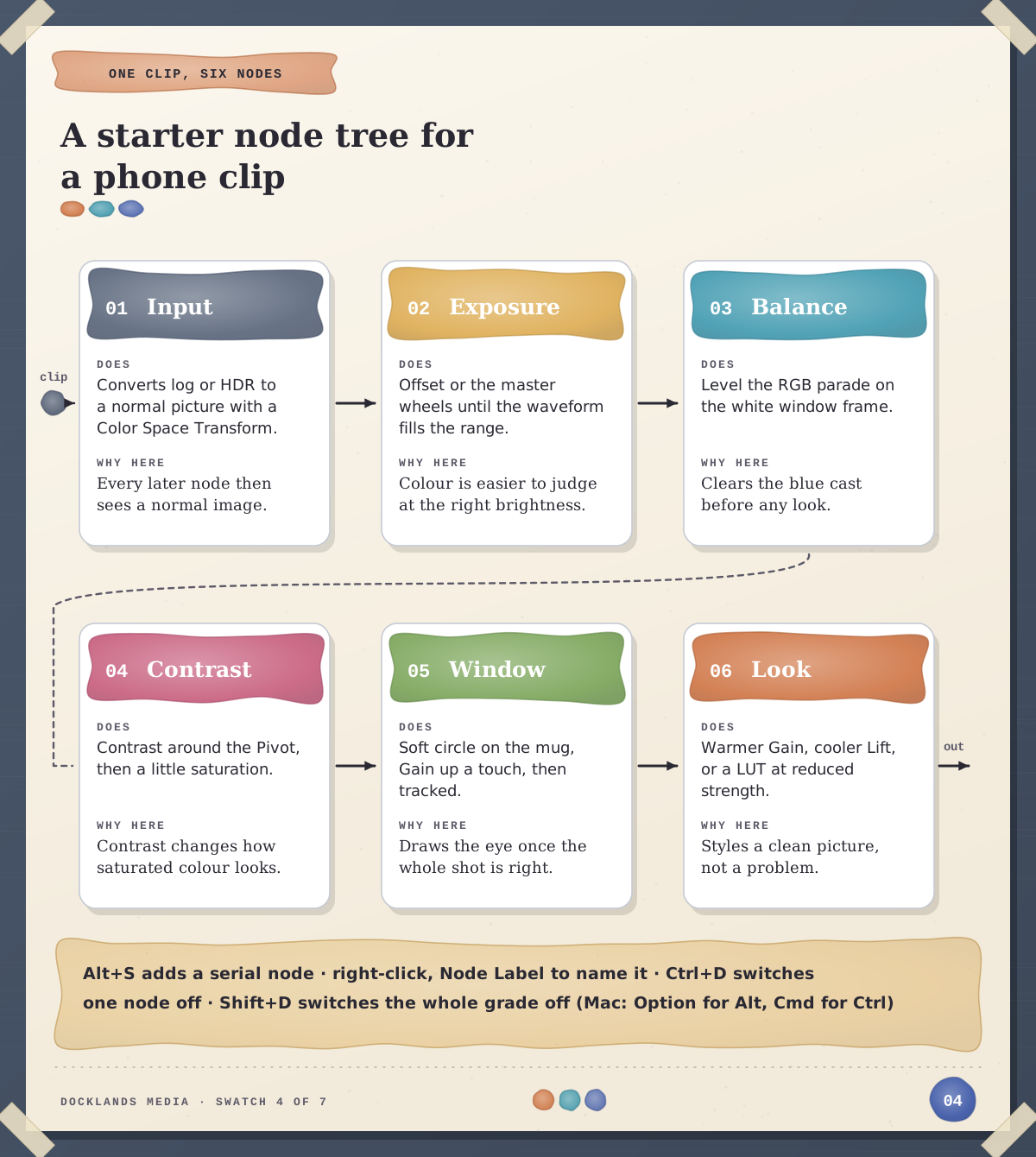
Press Ctrl+D (Cmd+D) on any node to switch it off and see what it does, and Shift+D to switch off the whole grade for a quick before and after. Most clips need four to seven nodes, not twenty.
Serial, parallel or layer node?
Every node in that tree is serial. The other types solve particular problems:
Node | How it combines | Use it for |
|---|---|---|
Serial (Alt+S) | Each node works on the result of the one before | Almost everything, including all six steps above |
Parallel (Alt+P) | Several nodes take the same input and their results are combined | Separate fixes that mustn’t affect each other, such as one on skin and one on the sky |
Layer (Alt+L) | Like parallel, but the lowest input wins where they overlap | Overlapping fixes where one has to take priority |
Outside (Alt+O) | Works on everything outside the previous node’s window or key | Darkening the background around a subject you’ve already isolated |
Our view: a beginner’s tree should be almost all serial nodes. Reach for parallel and layer nodes when you have the problem they solve, not because a complicated tree looks professional.
How do you make a whole video match?
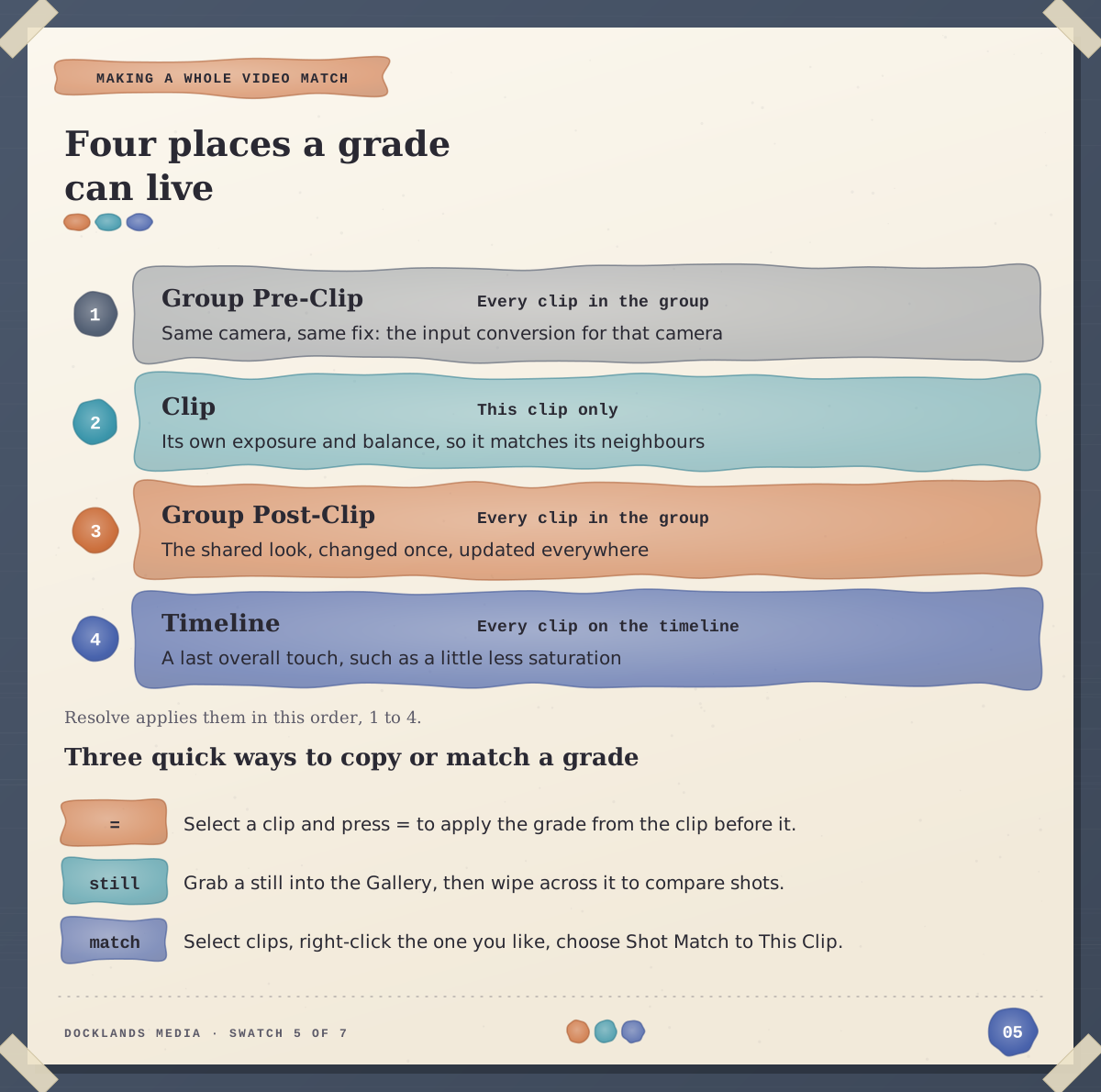
Press = with a clip selected to apply the grade from the clip before it. Grab a still into the Gallery and wipe across it to compare two shots. Shot Match to This Clip gives a quick first pass to refine on the parade.
For longer edits, groups save the most time. Put clips from one camera or scene in a group and the grade can live in four places: Group Pre-Clip, Clip, Group Post-Clip and Timeline, applied in that order. The camera conversion goes in Pre-Clip, each shot’s own fixes in Clip, and the shared look in Post-Clip, where one change updates every clip in the group.
Shared nodes do a similar job across ungrouped clips, and PowerGrade albums in the Gallery carry a look into every project.
Do you need DaVinci Resolve Studio to grade?
Not to learn, and not for most everyday work. Everything above, including the wheels, curves, HDR palette, qualifiers, Power Windows, window tracking, nodes, groups, Shot Match and Auto Color, is in the free version. Studio adds Magic Mask, noise reduction, Film Look Creator, Face Refinement, Relight, Depth Map and effects such as Contrast Pop, Dehaze and Film Grain, plus HDR scopes. Use a Studio-only tool in the free version and a watermark appears until you remove it. Our post on whether DaVinci Resolve is free covers the full split.
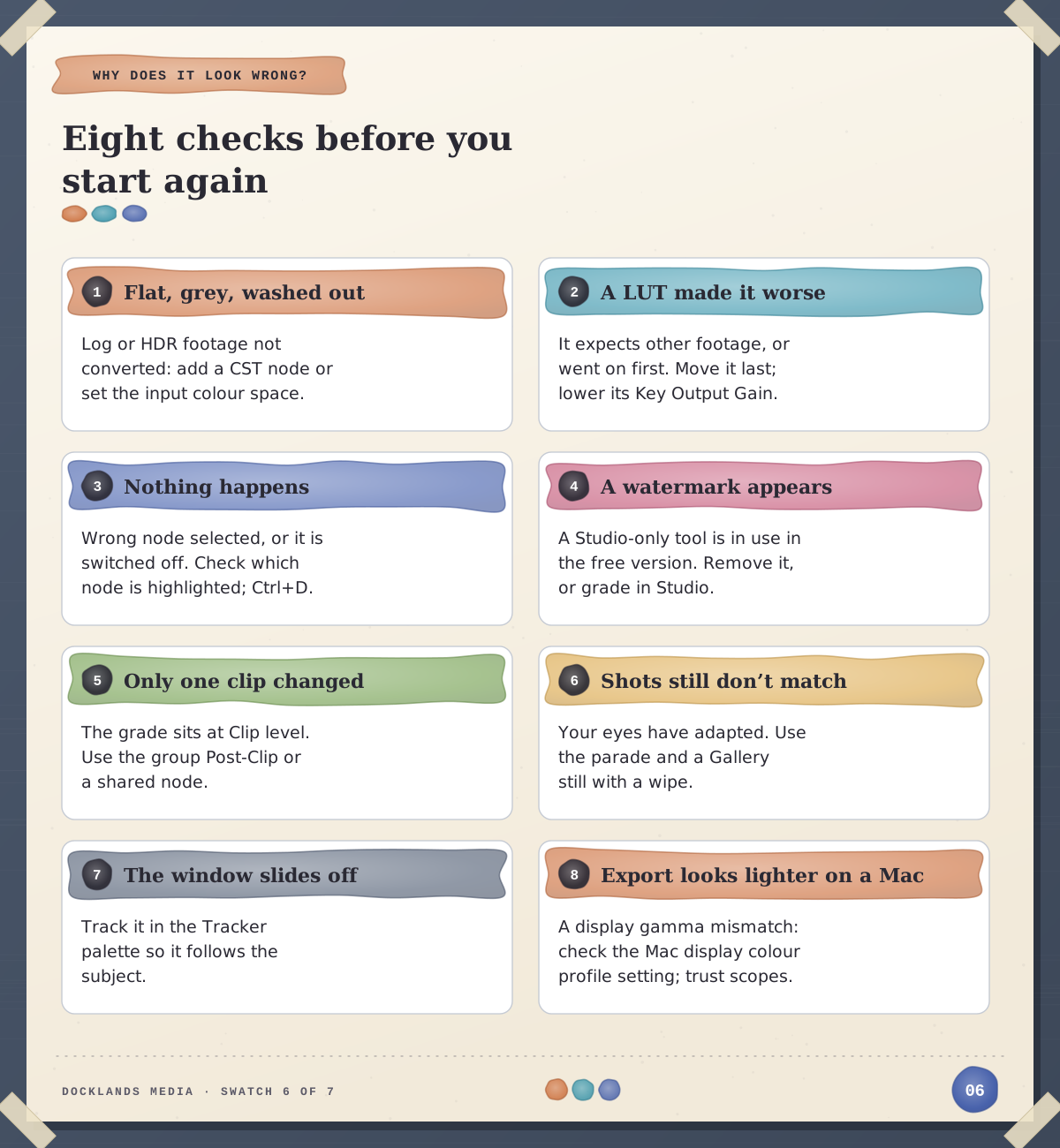
Why does my grade look wrong? A troubleshooting checklist
It’s nearly always one of these:
Flat, grey and washed out. Unconverted log or HDR footage. Add a Color Space Transform node or set the input colour space.
A LUT made it worse. It expects different footage, or went on before correction. Move it last and lower its strength.
Nothing happens when you adjust. Another node is selected, or it’s switched off.
A watermark appears. A Studio-only tool is in the grade.
Only one clip changed. The grade sits at Clip level. Use the group’s Post-Clip or a shared node.
Shots still don’t match. Your eyes have adapted. Compare on the parade.
The window slides off the subject. Track it.
The export looks lighter on a Mac. Usually a display gamma mismatch, not a bad grade. Check the Mac display colour profile option in Resolve’s preferences.
Three common starting points
A marketer with phone footage. Many phones record HDR, some by default, so clips can look washed out on a normal timeline. Convert them in the input node, or switch HDR off in the camera. After that, exposure, balance and one window on the product cover most social content.
A freelance editor handed log footage. Group the clips by camera, convert each camera in Pre-Clip, and keep the look in Post-Clip so a client’s “a bit warmer, please” is one change, not forty.
A small business filming under mixed light. Window daylight and warm bulbs in the same shot won’t balance with one move. Balance for the main light, then use a qualifier or a window to calm the other, and keep the look subtle.
Where colour grading fits in our DaVinci Resolve courses
Our DaVinci Resolve Beginner course (two days) starts with basic exposure and colour adjustments and using scopes. DaVinci Resolve Intermediate (three days) covers everything in this post, from Lift, Gamma and Gain to qualifiers, Power Windows and tracking. DaVinci Resolve Advanced (three days) moves on to structured node trees, matching cameras, creative looks, skin tones, colour management and HDR.
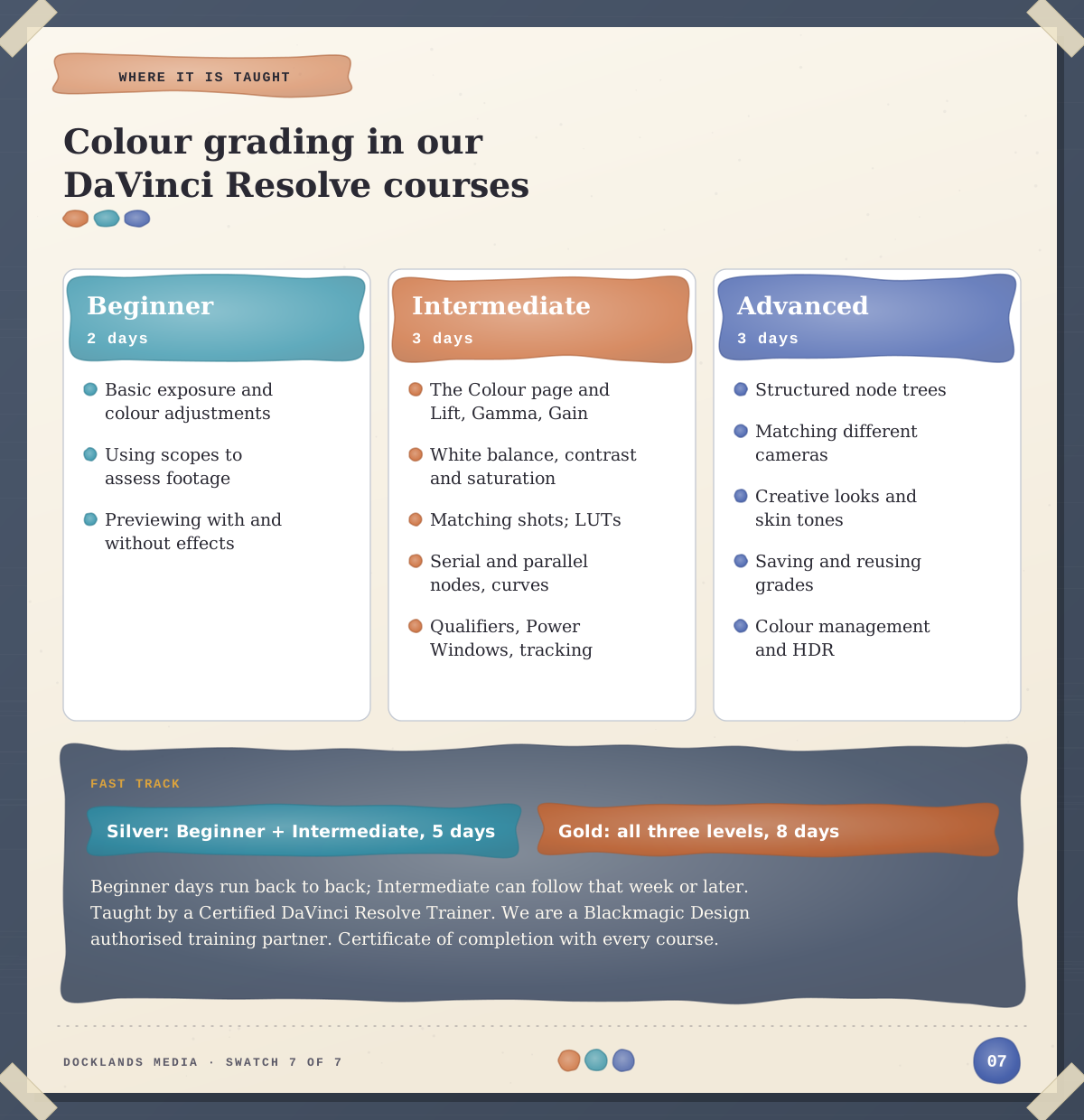
To build the skills in sequence, DaVinci Resolve Fast Track Silver combines Beginner and Intermediate over five days, and DaVinci Resolve Fast Track Gold adds Advanced for eight. The Beginner days run back to back, and the Intermediate part, also on consecutive days, can follow in the same week or a later one. Every course includes a certificate of completion, and you can train in our London classroom or live online with a Certified DaVinci Resolve Trainer.
Docklands Media is a Blackmagic Design authorised training partner, and we’re authorised by Adobe, Autodesk, Maxon, Blackmagic Design and Certiport. If you’re still choosing an editor, our comparison of Premiere and DaVinci Resolve sets out how the two differ.
So when the LUT question comes up, answer it last. Correct the shot first, and you may find you don’t need one at all.