Premiere is where you edit a video. You choose the shots, put them in order, trim them, mix the sound, add captions and export the finished film. After Effects is where you build what happens inside a shot: animated titles, logo reveals, motion graphics, visual effects and composites made from many layers. One works across a whole timeline of clips; the other zooms in on a few seconds at a time.
So if you’re wondering which one you need, it’s usually Premiere first, then After Effects once your projects need movement that Premiere’s own tools can’t give you. Many video jobs use both, and the most useful thing to understand is how the two pass work between them.
We teach both apps as an Adobe authorised training partner. Instead of another feature list, this guide follows one real-world project through Premiere and After Effects, looks at what UK job ads ask for, and matches the choice to the work you actually do.
Two apps, two different jobs
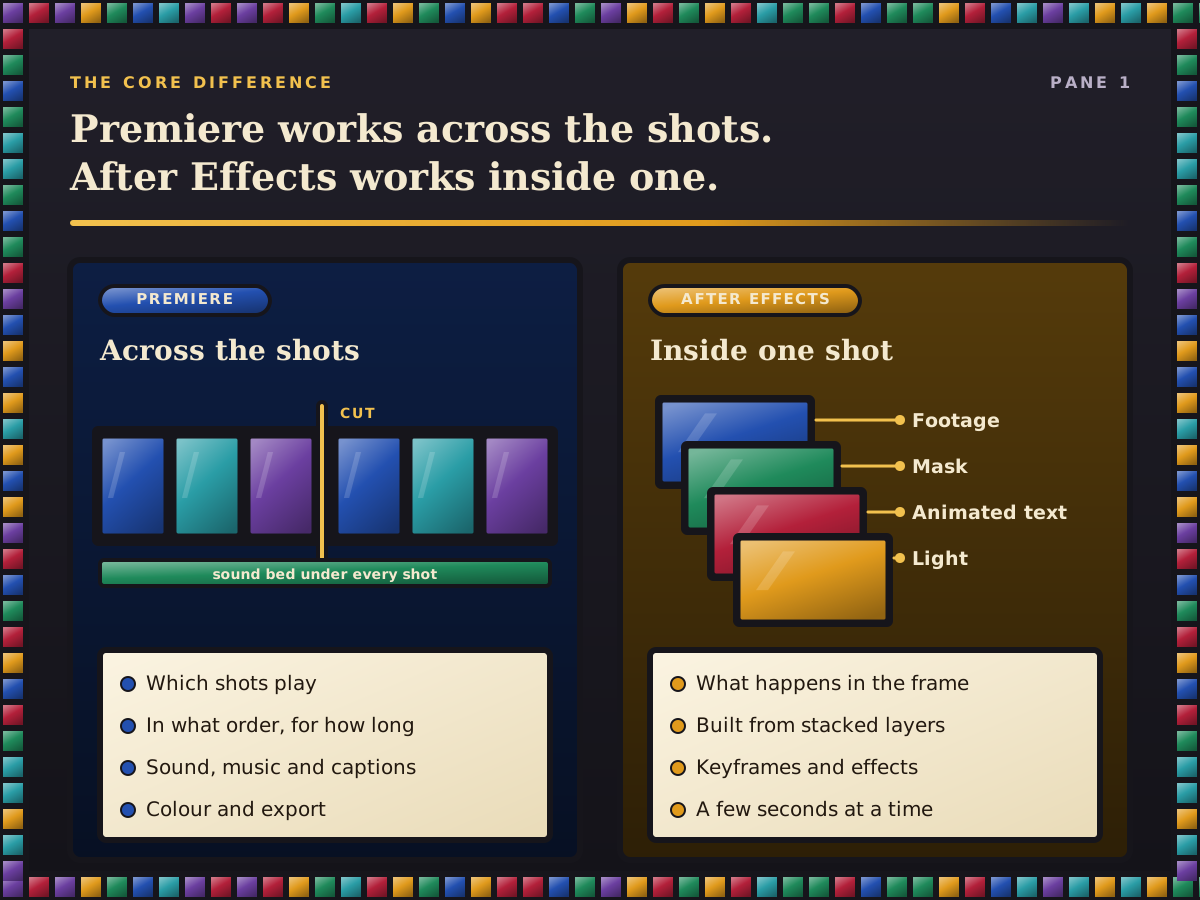
A useful way to remember it: Premiere decides which shots play and for how long, while After Effects decides what happens inside one of them. That difference runs right through the way each app is built.
Premiere | After Effects | |
|---|---|---|
Built around | A timeline of clips in a sequence | Layers stacked in a composition |
Typical length | Minutes to hours | Seconds to a minute or two |
Main jobs | Cutting, trimming, audio, colour, captions, export | Animation, motion graphics, compositing, visual effects |
Playback | Most footage plays in real time as you edit | Frames are rendered into memory before smooth playback |
Text | Titles, lower thirds and captions | Text that animates letter by letter, in 3D or in time to sound |
The playback row matters more than beginners expect. Because After Effects caches frames into RAM before it plays them smoothly, it’s comfortable with a ten-second logo but hard work for a twenty-minute interview. In our experience, people who try to edit whole videos in After Effects soon go back to Premiere.
Where do they overlap?
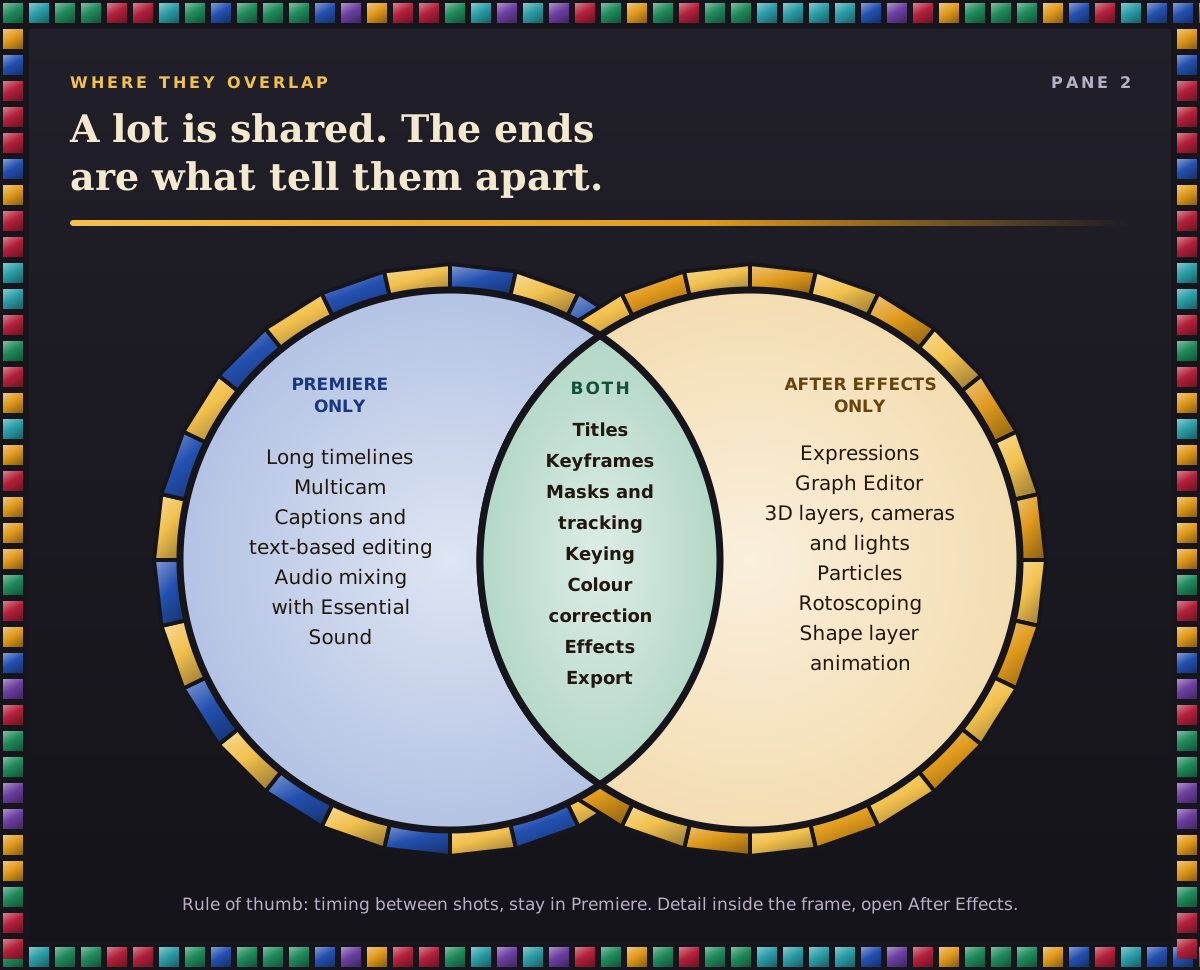
Quite a lot, which is where the confusion comes from. Premiere can add text, animate it with keyframes, draw masks, blur a face and track it as it moves, key out a green screen and correct colour with Lumetri. After Effects can do all of that too, with more control. It also does plenty that Premiere can’t, such as expressions, 3D layers with cameras and lights, particles and rotoscoping.
Our rule of thumb: if a fix is about timing between shots, stay in Premiere. If it’s about what’s inside the frame and Premiere’s version looks a bit rough, that’s the moment to open After Effects.
One project, both apps
Here’s a worked example of how the two fit together. A small skincare brand wants a 60-second launch video: an interview with the founder, product shots, music, a logo at the end and name captions for each speaker.
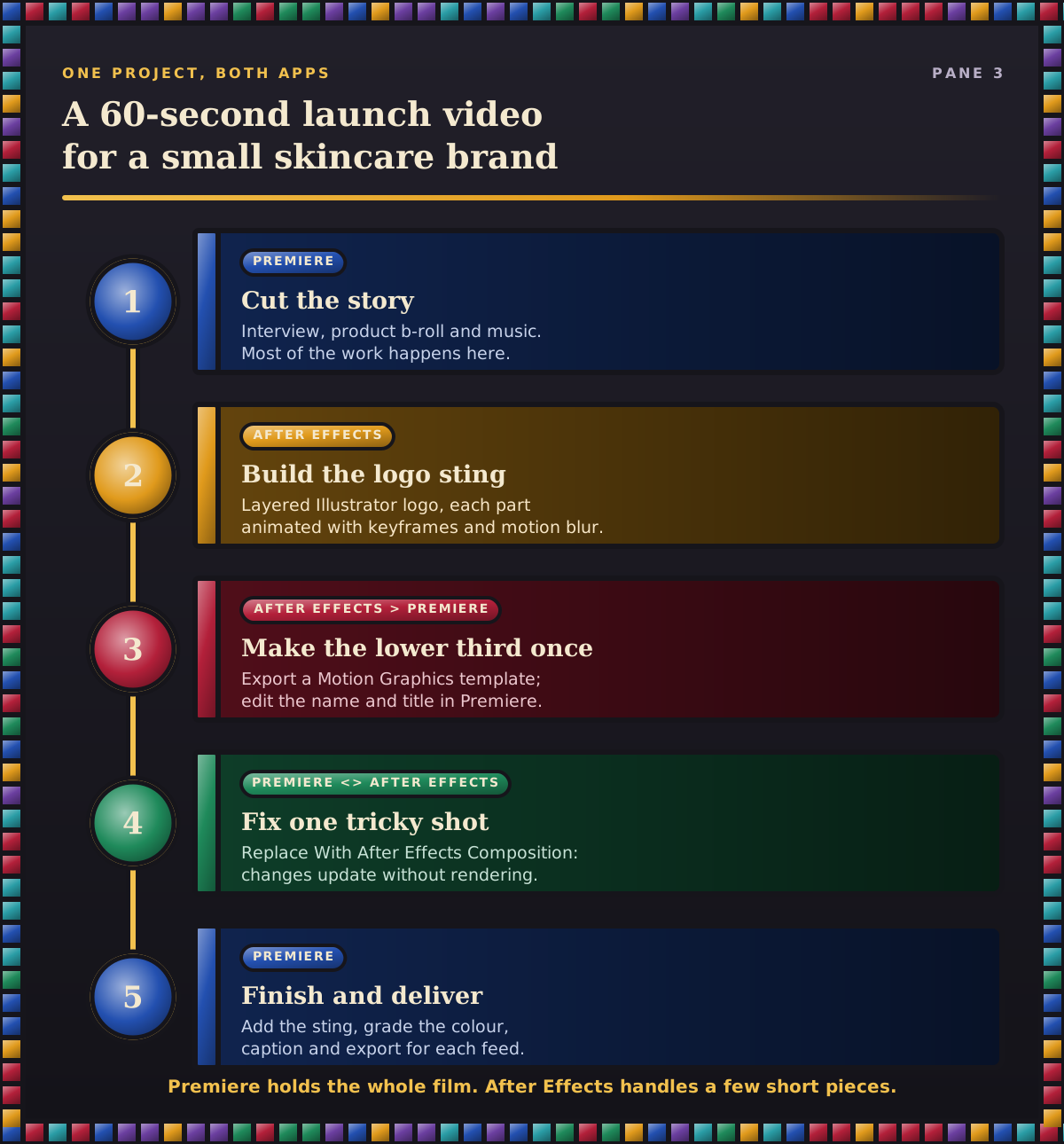
Cut the story in Premiere. Lay down the interview, trim it, add product b-roll over the top, lower the music under the voice and get the timing right. This is most of the work, and none of it needs After Effects.
Build the logo sting in After Effects. Import the logo as a layered Illustrator file so each part becomes its own layer, then animate the pieces into place with keyframes and some motion blur.
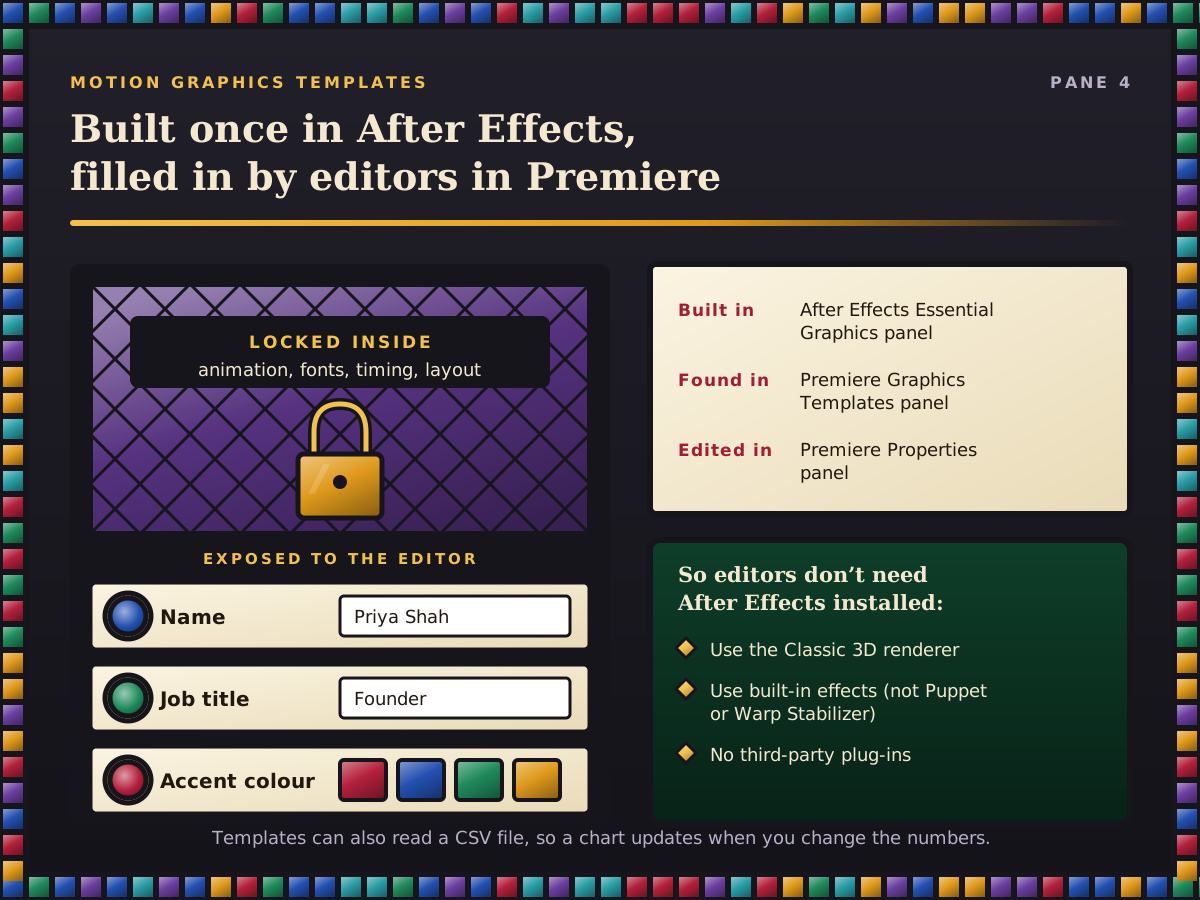
Make the lower third once, as a template. Design the name caption in After Effects, then use the Essential Graphics panel to expose only the controls an editor should change, such as name, job title and accent colour. Export it as a Motion Graphics template (a .mogrt file). In Premiere it appears in the Graphics Templates panel, and you edit the text in the Properties panel.
Send one tricky shot across. Say a competitor’s product is visible on a shelf. Right-click the clip in Premiere and choose Replace With After Effects Composition. The new composition picks up the sequence’s frame size and frame rate, you paint the problem out in After Effects, and the fix appears in your Premiere timeline without rendering. This link is called Dynamic Link, and it needs the same major version of both apps. If playback stutters, Render and Replace bakes the shot into a normal clip.
Finish in Premiere. Drop the logo sting at the end, grade the colour, add captions and export versions for the website and social feeds.
Notice the shape of it: Premiere holds the whole film from start to finish, and After Effects handles a few short pieces.
Why templates change who needs which app
That third step is the part most comparisons skip, and in our view it changes the question for teams. Once a motion designer has built a set of templates, everyone else can make on-brand videos in Premiere without opening After Effects. The animation, fonts and timing stay locked inside the template, and only the exposed controls can be changed.
There’s a catch worth knowing if you build templates for colleagues. Some templates need After Effects installed on the editor’s computer before they can be customised. To avoid that, stick to the Classic 3D renderer, use After Effects’ built-in effects (a few, such as Puppet and Warp Stabilizer, aren’t supported), and leave out third-party plug-ins. Templates can also be driven by a CSV spreadsheet, so a marketer can update a bar chart in Premiere by editing numbers rather than keyframes.
The job ads back this up. One London video editor role we read asked for motion graphics and captions made “using existing templates”: Premiere work, built on someone else’s After Effects work.
What UK job ads ask for
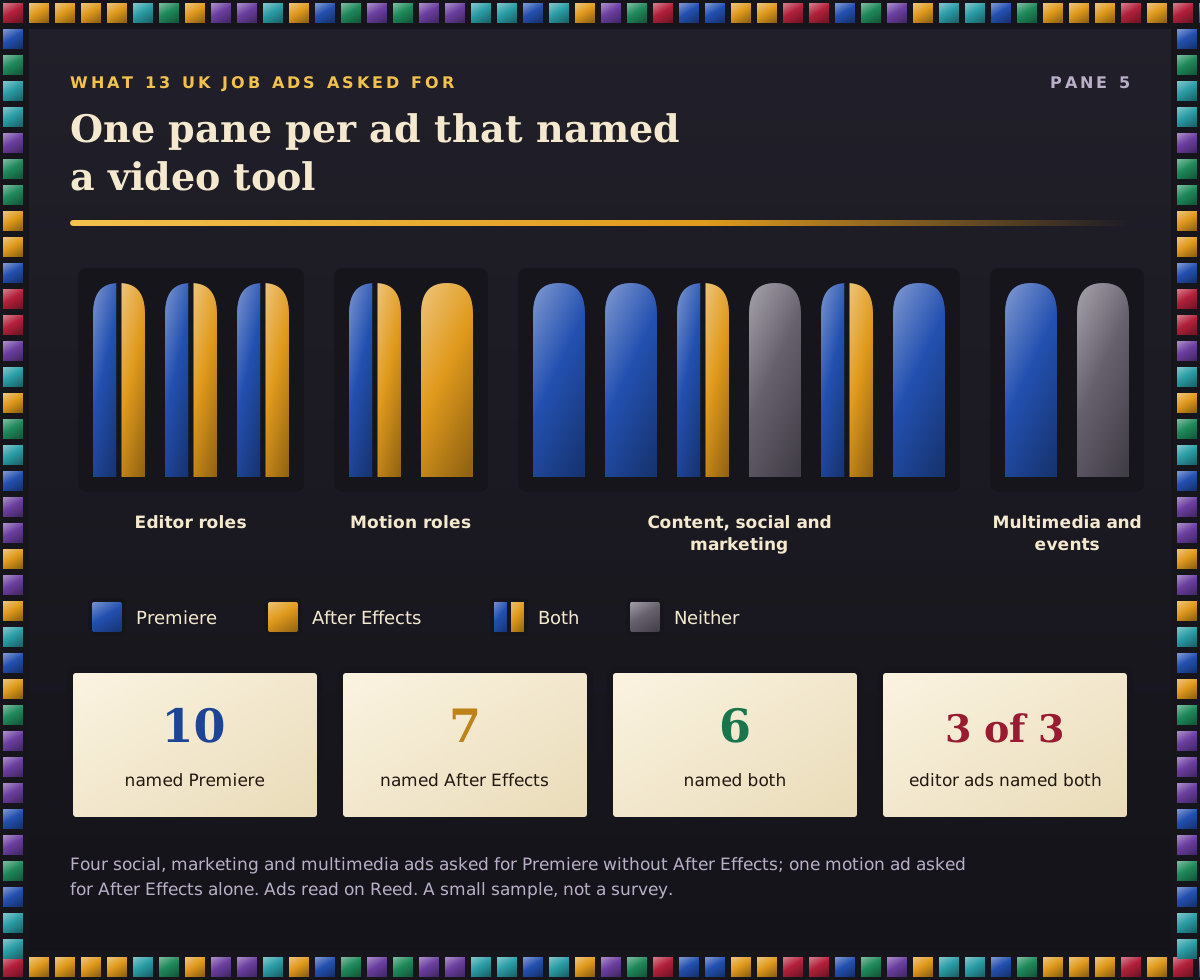
To see how employers split the two, we read video, content and social media ads on Reed and kept the 13 that named a specific video tool. It’s a small sample rather than a survey, but the pattern was clear:
Premiere was named in 10 of the 13, After Effects in 7, and both together in 6.
All three ads with “editor” in the title named both apps. In two of those three, Premiere was the main skill and After Effects was “working knowledge”.
Motion roles reversed it. A freelance motion and social designer ad required After Effects and called Premiere a bonus; another motion designer ad listed After Effects alone.
Generalist roles leaned on Premiere alone. Four social media, marketing and multimedia ads asked for Premiere without After Effects, sometimes next to lighter tools such as CapCut or Canva.
Our takeaway: for editing roles, Premiere is the entry ticket and After Effects is what makes your application stand out. For motion roles it’s the other way round.
Which one should you learn first?
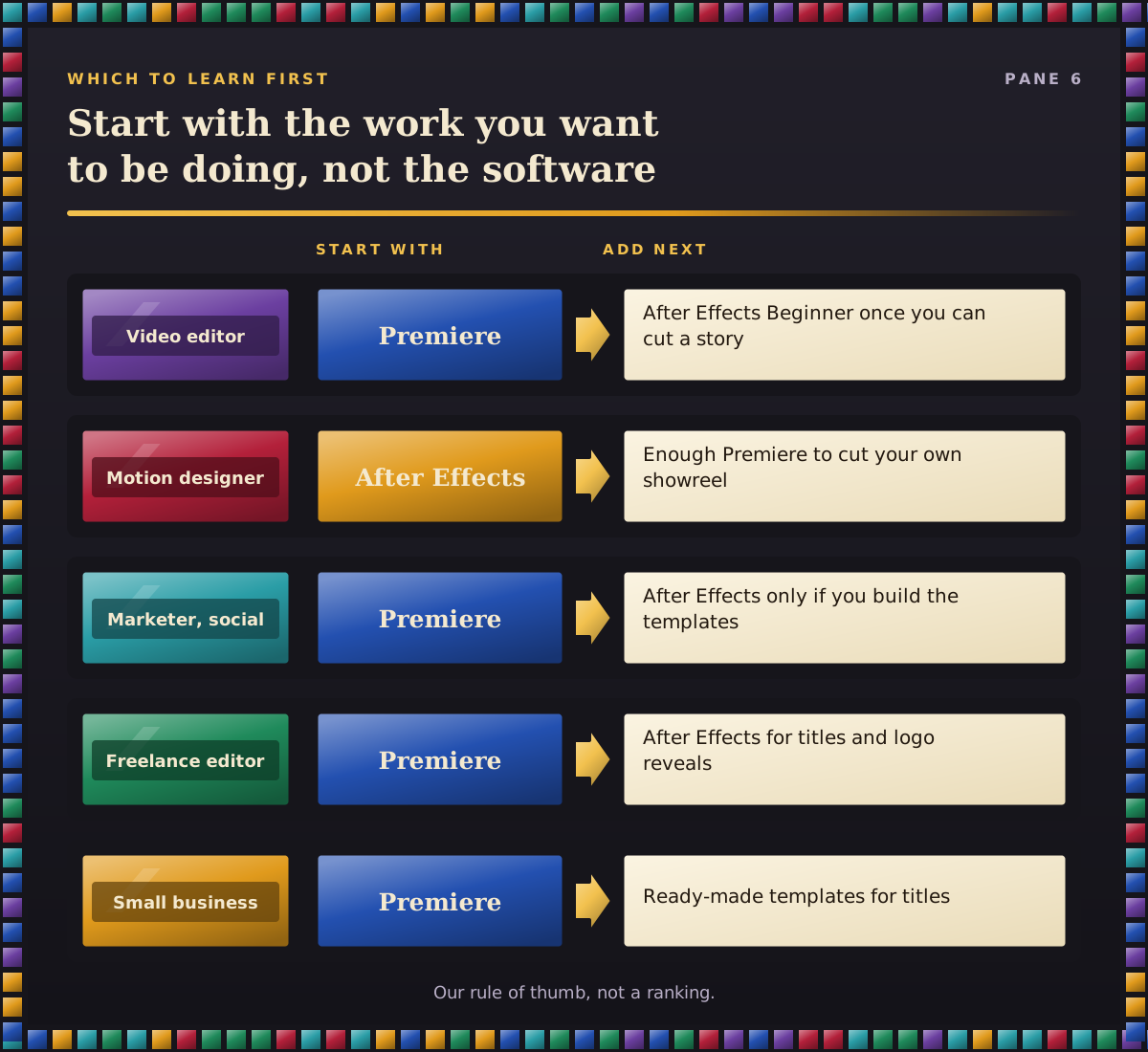
It depends on the work you want to be doing in six months. Here’s our rule of thumb by role:
Video editor: Premiere first, every time. Add After Effects once you can cut a story cleanly.
Motion designer: After Effects first, plus enough Premiere to cut your own showreel.
Marketer or social media manager: Premiere first. You only need After Effects if you’ll be the person building the templates.
Freelance editor: Premiere, then After Effects as soon as clients start asking for animated titles and logo reveals, because those requests pay.
Small business owner: Premiere is probably enough on its own, using ready-made templates for titles.
If you’re still choosing an editor in the first place, our Premiere vs DaVinci Resolve comparison covers that decision. And if you’re curious what a first After Effects project looks like, see what you can make after an After Effects beginner course.
One practical point: a Premiere plan doesn’t include After Effects. Each is sold as its own single-app plan, and both are part of Creative Cloud Pro along with Photoshop and Illustrator, which you’ll often use alongside them.
A learning path that uses both
Most people learn the two in roughly the order our courses run:
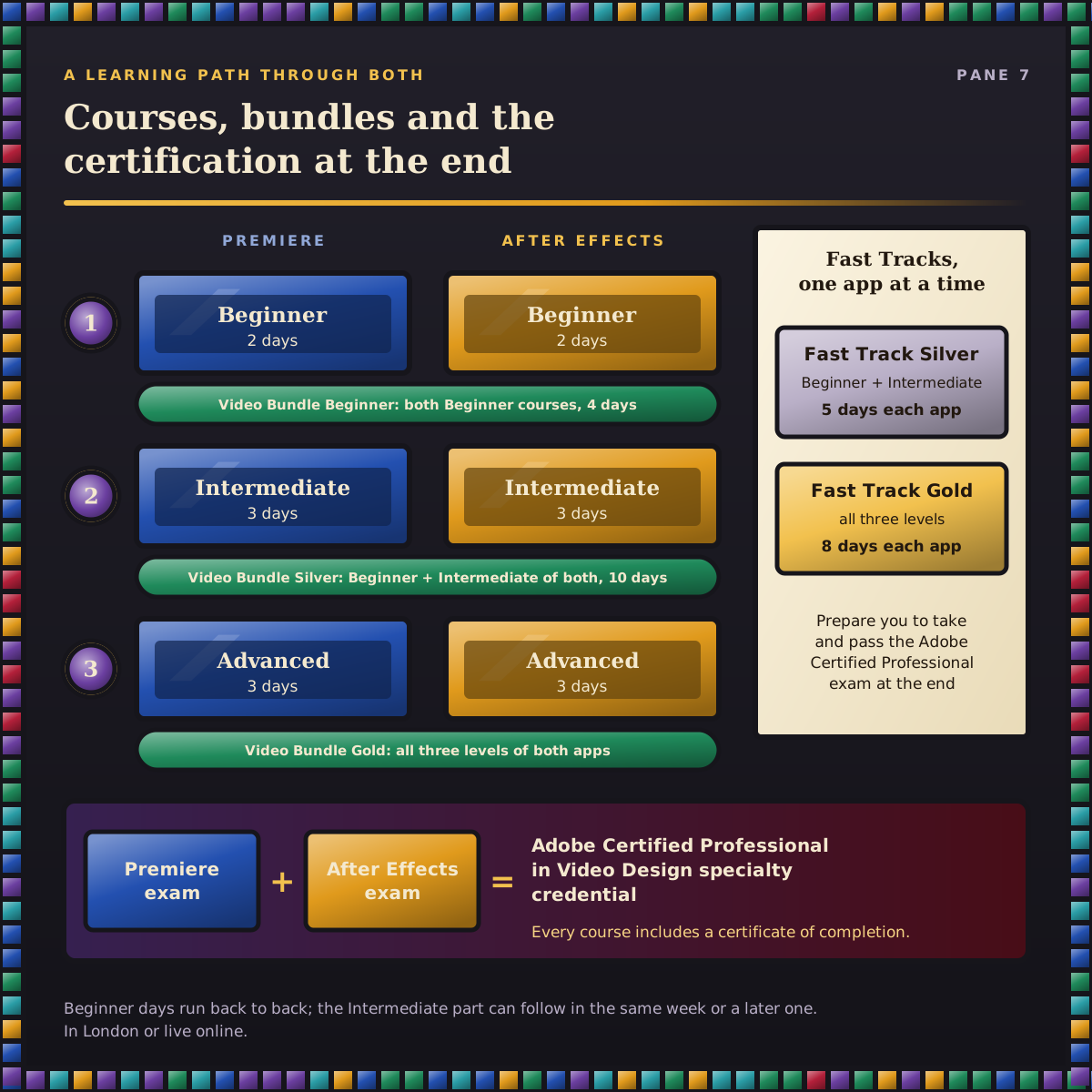
Premiere Beginner (two days): organising footage, insert and overwrite edits, multiple tracks, audio levels and music, transitions, titles, basic colour and exporting for social, web and broadcast.
After Effects Beginner (two days): compositions, layered Photoshop and Illustrator files, keyframes, motion paths, masks, text animation, motion tracking and rendering.
Premiere Intermediate and After Effects Intermediate (three days each): J and L cuts, Essential Sound, masks and Lumetri in Premiere; easing, the Graph Editor, expressions, 3D layers and particles in After Effects.
Premiere Advanced and After Effects Advanced (three days each): multicam, text-based editing and sending clips to After Effects; keying, shape layers, lights and shadows.
To cover both apps together, the Video Bundle Beginner combines the two Beginner courses over four days, Video Bundle Silver adds both Intermediate levels for ten days, and Video Bundle Gold goes all the way to Advanced. If you’d rather go deep in one app, Premiere Fast Track Silver and After Effects Fast Track Silver take five days each, and Premiere Fast Track Gold and After Effects Fast Track Gold take eight. The Beginner days run back to back, and the Intermediate part can follow in the same week or a later one.
Every course comes with a certificate of completion, in London or live online. There are Adobe Certified Professional exams for both Premiere and After Effects, and our Fast Tracks prepare you to take and pass the exam at the end of the course. Pass both and you also earn the Adobe Certified Professional in Video Design specialty credential. Our guide to the Adobe Certified Professional exam explains how it works.
Quick checklist: which app does this job need?
Cutting an interview, event film or tutorial: Premiere.
Captions, subtitles and versions for different social feeds: Premiere.
Name captions and simple titles: Premiere, ideally from a template.
An animated logo or a title sequence: After Effects.
An explainer made from icons, charts and moving text: After Effects.
Removing something from a shot or replacing a screen: After Effects, through Dynamic Link.
Making templates that the rest of the team will use: After Effects, used in Premiere.
Docklands Media is authorised by Adobe, Autodesk, Maxon, Blackmagic Design and Certiport. If you’re not sure where to start, tell us what you’re making and we’ll point you to the right course.