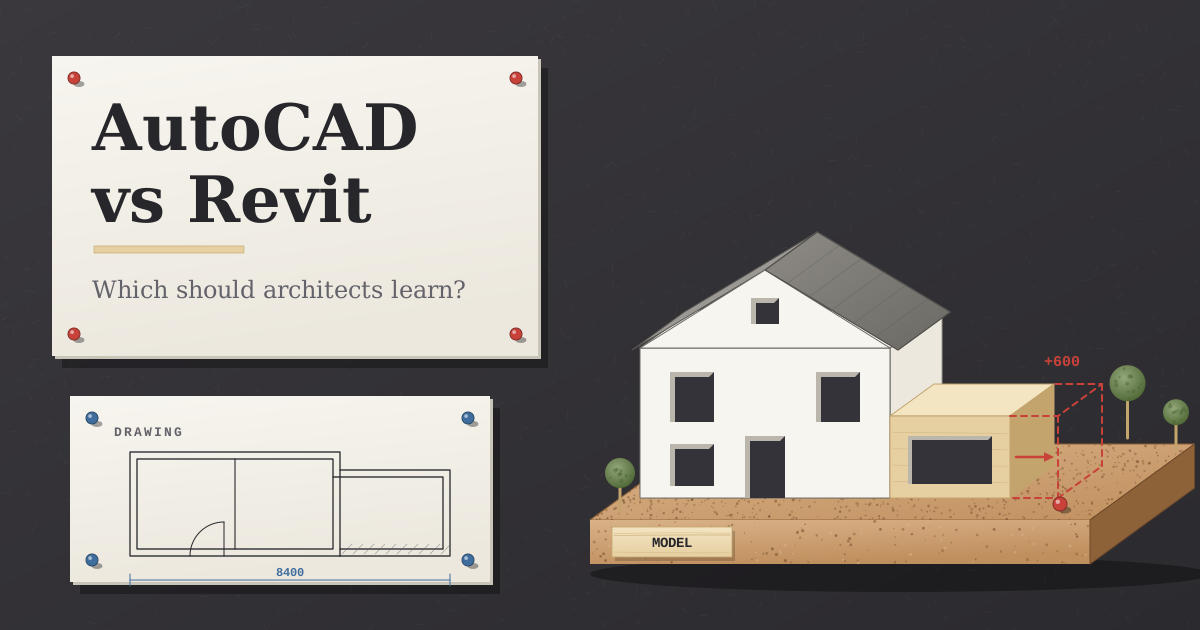
Picture a single-storey rear extension, drawn up and nearly ready for planning. Then the client calls: could the back wall go out another 600 mm? In AutoCAD, that means working through the plan, three elevations, a section, the roof plan and the floor area by hand, and hoping nothing gets missed. In Revit, you move one wall and the drawings follow it.
That phone call explains most of the AutoCAD vs Revit question. AutoCAD is a drawing program: you place precise lines, arcs, hatches and blocks, and the drawing is whatever you make it. Revit is a BIM (building information modelling) program: you build walls, floors, doors and roofs as real objects, and the plans, sections and schedules are views of that one model. For most people working on buildings the honest answer is to learn both, Revit for projects that get revised and documented, AutoCAD for details, surveys and the DWG files everyone else sends you. Which one comes first depends on the work you do, and that’s what the rest of this post sorts out.
What’s the real difference between AutoCAD and Revit?
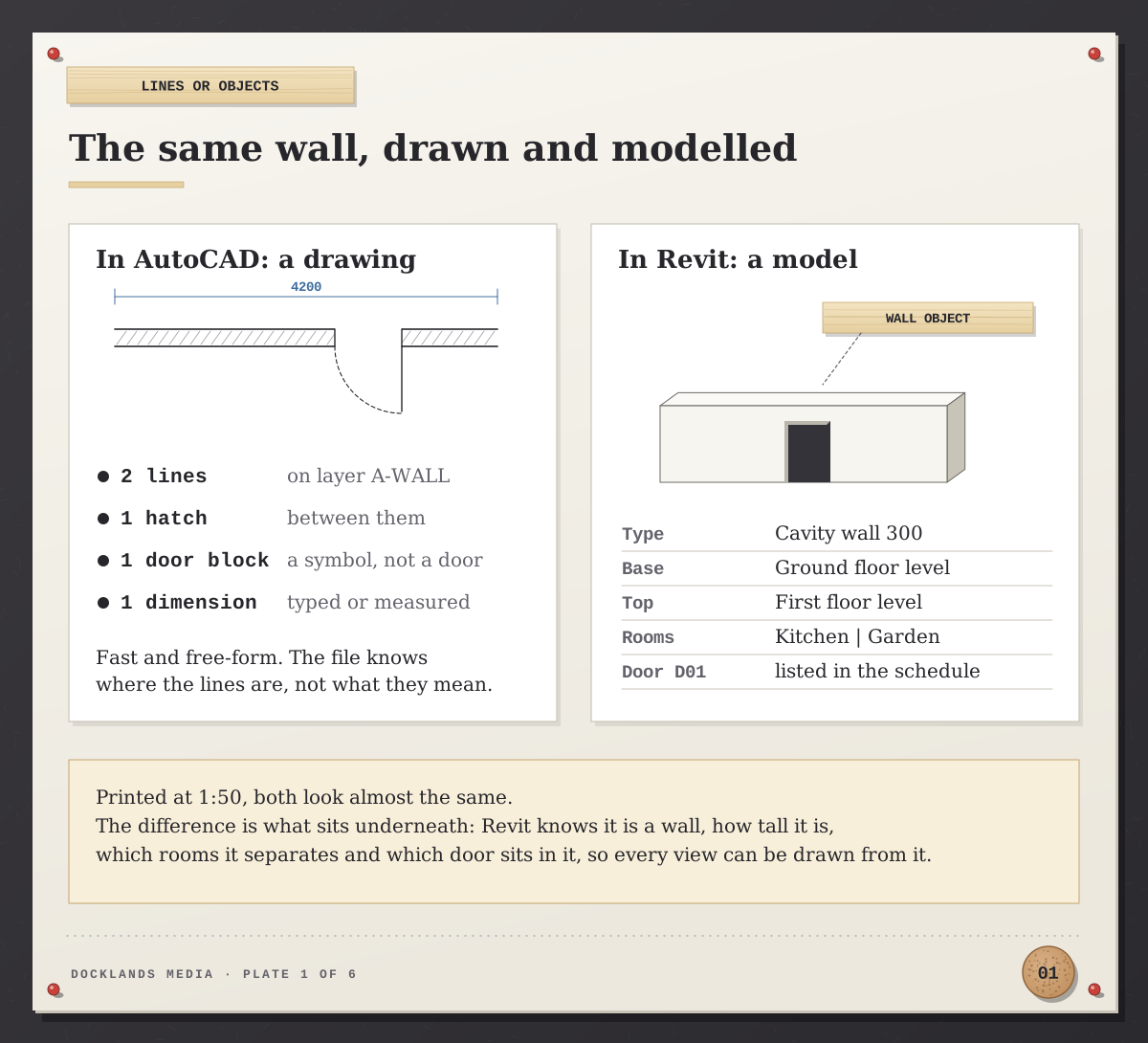
Print a 1:50 plan from each and you’d struggle to tell them apart. The difference is what sits underneath. An AutoCAD wall is two lines and a hatch on a layer you chose. A Revit wall knows its type, its height, which levels it runs between and which rooms it separates, so a door placed in it shows up in the plan, the elevation and the door schedule at once.
AutoCAD | Revit | |
|---|---|---|
What you make | 2D drawings (and 3D models in full AutoCAD) | A building model that drawings are taken from |
Main file types | DWG, the format most consultants and surveyors exchange | RVT for projects, RFA for families; exports DWG and IFC |
When the design changes | You edit each drawing | You edit the model; views and schedules update |
Working as a team | Xrefs: each person works in their own file | Worksharing: several people in one central model |
Computers | Windows and Mac | Windows only |
Lighter version | AutoCAD LT: 2D only | Revit LT: one user at a time, no worksharing |
Older versions | Can save back to older DWG formats | Upgrades are one way; a file can’t be saved back to an older release |
Quickest for | Details, layouts, surveys, small jobs | Whole buildings, revisions, coordinated sets |
One wall, nine drawings: a worked example
Back to the extension. Here’s what the 600 mm change touches. In AutoCAD it’s nine separate edits: the ground floor plan, the rear elevation, both side elevations, the section, the roof plan, the kitchen floor area, the proposed half of your existing-and-proposed set, and any construction details. Each one is a chance for the plan and the elevations to quietly disagree.
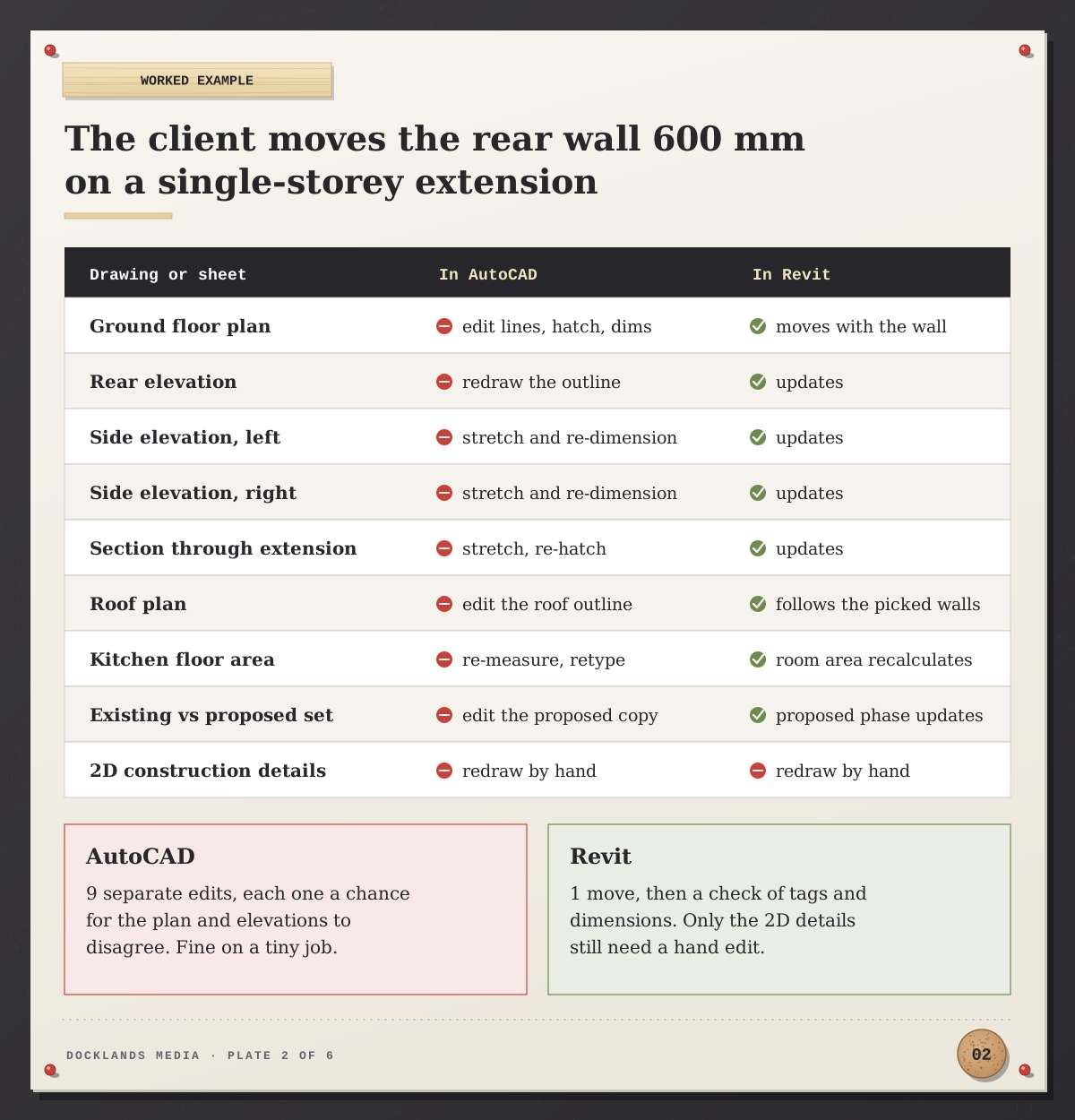
In Revit you move the wall. The plan, elevations and section redraw themselves, the room area recalculates and the roof follows if it was sketched from the walls. Revit’s phasing keeps existing, demolished and proposed work in the same model, so the planning set updates too. Two things don’t move on their own: 2D details drawn as linework, and the odd dimension or tag you’ll want to check.
The trade-off is the set-up. A Revit job needs levels, a template and the right families before the first drawing looks right, and on a one-off garden room that can take longer than drawing it in AutoCAD. Our rule of thumb: the more times a design is likely to change, the more Revit pays back.
What do UK practices actually ask for?
We read through current UK job ads on Reed.co.uk for architectural technicians, Part 2 architectural assistants and interior designers, and took out reposts of the same job. The pattern was clear.

Of 36 architectural technician and assistant ads, 27 named AutoCAD, 29 named Revit and 22 asked for both. Interior designer ads leaned the other way: AutoCAD came up in 8 of 12, Revit in 3. Our view is that for architectural roles, picking one program and ignoring the other is the riskier choice, while interior designers can start with AutoCAD and add Revit as clients and practices ask for it.
Which should you learn first?
It depends on what’s on your desk next month, not on which program sounds more modern.
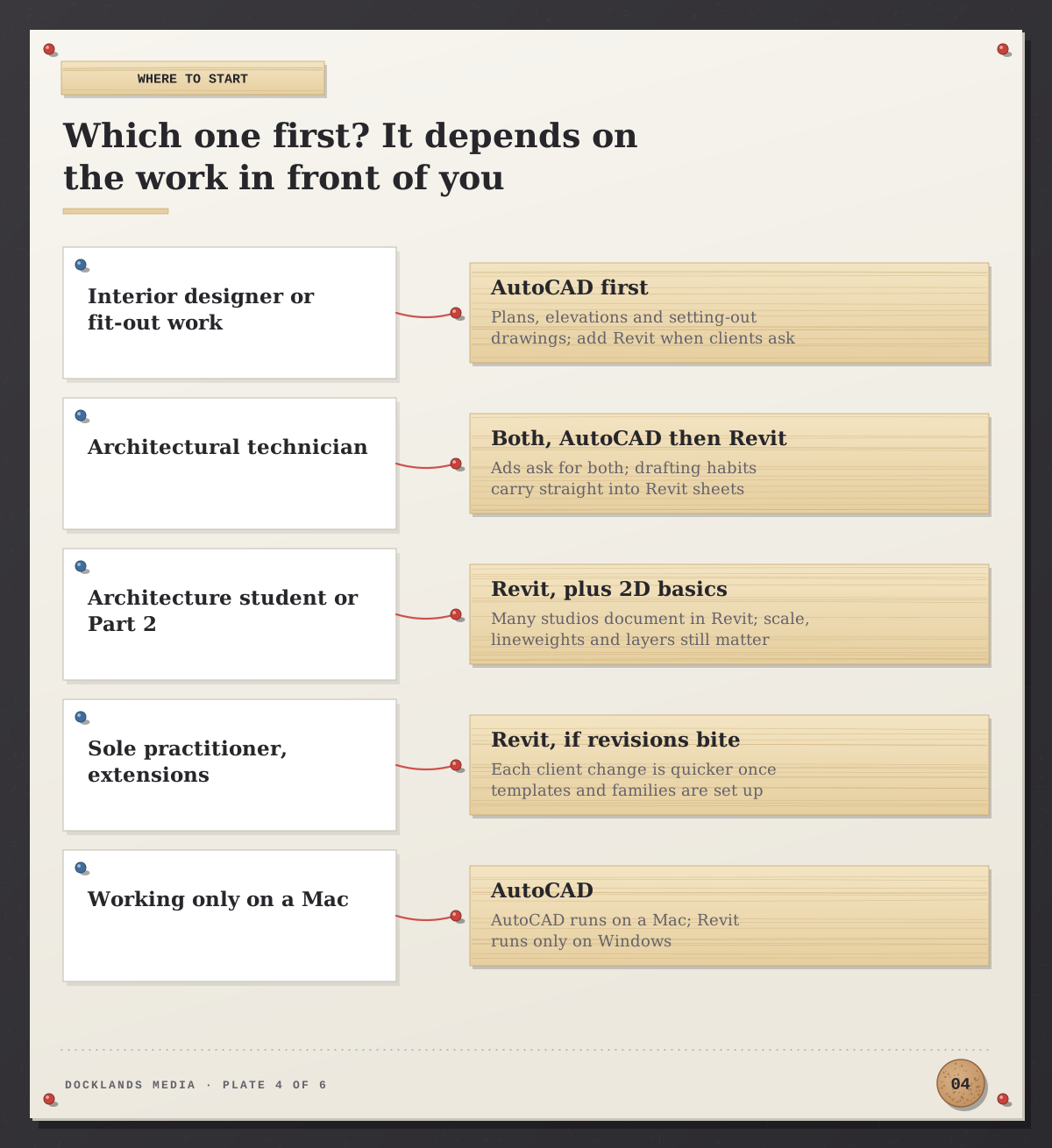
Interior designers and fit-out work: start with the AutoCAD Beginner course. Plans, elevations and setting-out drawings are mostly 2D, and DWG is what landlords and contractors send.
Architectural technicians: both. AutoCAD habits (scale, layers, lineweights, clean dimensions) carry straight into Revit sheets, so AutoCAD first and then Revit is a natural order.
Architecture students and Part 2s: go to Revit, and keep the 2D basics in view. The Revit Beginner course is built for people with little or no previous experience, so you don’t need AutoCAD first.
Sole practitioners doing extensions and refurbishments: Revit, if client revisions eat your week. Revit LT can be enough for one person working alone.
Mac users: AutoCAD runs on a Mac; Revit runs only on Windows, so plan for a Windows machine before committing.
Myths worth dropping
“Revit is replacing AutoCAD.” Not in practice. Revit links and exports DWG because so much of the industry still works in it, and most practices run both side by side.
“Revit is AutoCAD in 3D.” It’s a different way of thinking. In AutoCAD you draw what the sheet should look like; in Revit you model what the building is and let the sheet follow. That shift, not the buttons, is what takes adjusting to.
“AutoCAD can’t do 3D.” Full AutoCAD models 3D solids and surfaces and renders them with materials and lighting, which is what our AutoCAD Advanced course covers. It’s AutoCAD LT that is 2D only.
“Revit is only for big firms.” Worksharing matters most on teams, but the single-model benefit in the worked example above applies just as much to one person with a busy client list.
How AutoCAD and Revit work together on one project
On a real job the two programs pass files back and forth all the time. A measured survey usually arrives as DWG, and it’s best linked into Revit rather than imported, so it stays a live reference you can reload when the surveyor sends a revision. Standard details that already work in AutoCAD can sit on Revit sheets in drafting views instead of being redrawn.
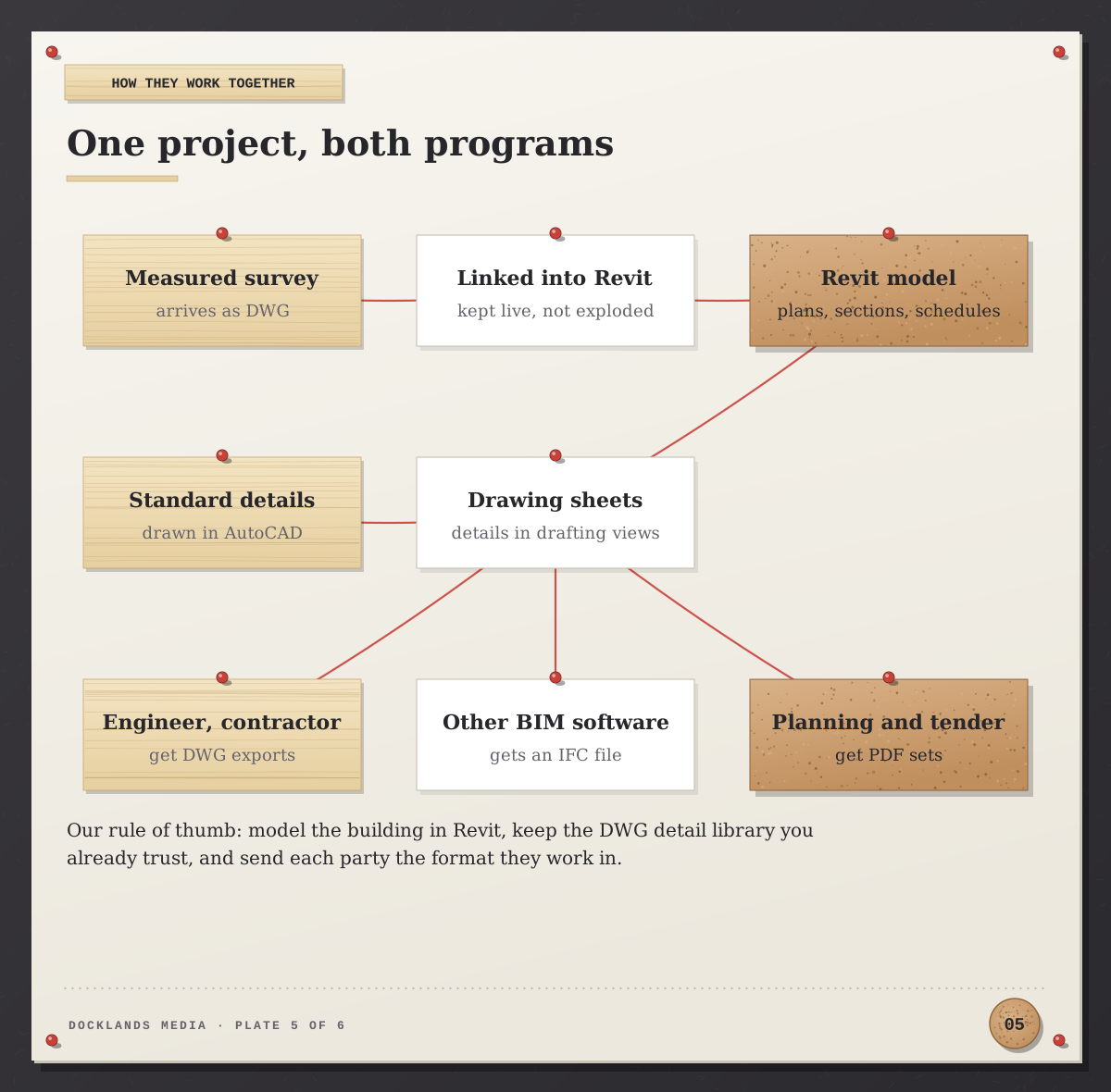
Going out, the structural engineer or contractor may want DWG exports, a consultant on other BIM software will usually ask for IFC (the open BIM exchange format, which Revit reads and writes), and planning and tender sets go as PDFs. One practical tip: agree the Revit version at the start of a project. Once a model is opened in a newer release it’s upgraded for good, and anyone still on the older version can’t open it.
Where our AutoCAD and Revit courses fit
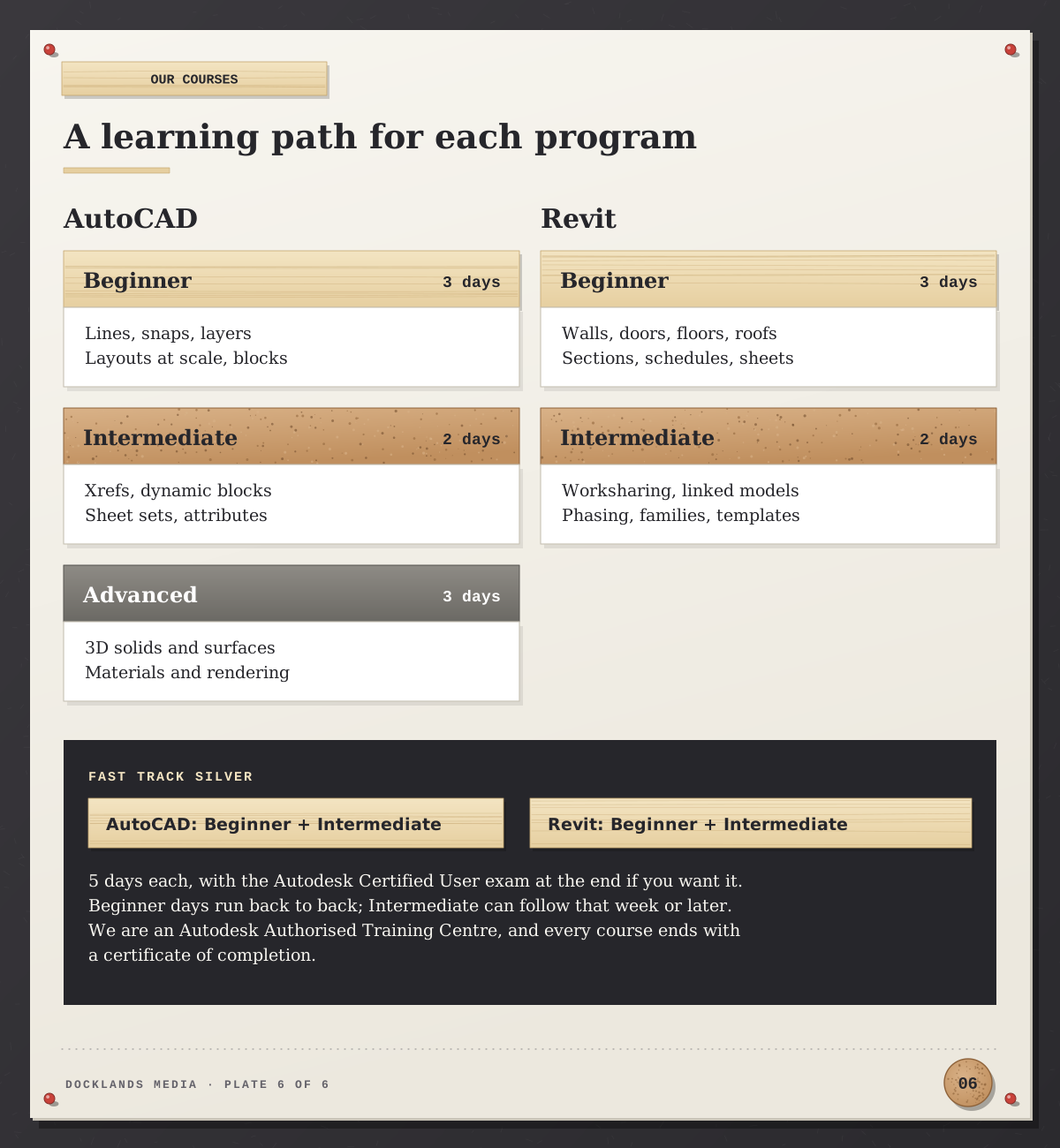
Both programs have the same shape here. The AutoCAD Beginner and Revit Beginner courses each run over three consecutive days; the AutoCAD Intermediate and Revit Intermediate courses add two more, covering Xrefs, sheet sets and dynamic blocks on the AutoCAD side, and worksharing, linked models, phasing and families on the Revit side. If you want the Autodesk Certified User exam, which exists for both AutoCAD and Revit, we normally recommend the AutoCAD Fast Track Silver or the Revit Fast Track Silver: Beginner and Intermediate together over five days, preparing you to take and pass the exam at the end of the course. The Beginner days run back to back, and the Intermediate part can follow in the same week or a later one. For AutoCAD 3D as well, the AutoCAD Fast Track Gold adds the Advanced level.
Docklands Media is an Autodesk Authorised Training Centre, and we’re also authorised by Adobe, Maxon, Blackmagic Design and Certiport. Courses run in London or online, and every course ends with a certificate of completion. If AutoCAD is your first step, our guide to how long it takes to learn AutoCAD sets out what to expect, and our post on the Autodesk Certified User exam for AutoCAD covers what the exam tests.